v0.dev Pro Plan Deep Dive: Is the $20/month Price Tag Justified? [Benchmarked vs Free Tier] 목차 (Table of Contents) ▶ Understanding v0.dev's Credit-Based Pricing Model ▶ Breaking Down the Free, Pro, and Team Plans ▶ Evaluating Model Performance and Access by Tier ▶ Hidden Costs and Infrastructure Considerations ▶ Competitive Landscape: v0.dev vs. Cursor, Bolt AI, and Lovable ▶ Is the v0.dev Pro Plan Worth It in 2026? Understanding v0.dev's Credit-Based Pricing Model How v0.dev Allocates Monthly Credits Across Tiers How v0.dev Allocates Monthly Credits Across Tiers Let’s cut through the marketing noise: v0.dev’s credit-based pricing model isn’t designed for light experimentation—it’s a usage throttle disguised as flexibility. I’ve run production Next.js prototypes, internal tools, and AI-generated component libraries through both the Free and Pro tiers, and the credit burn rate is where the rubber meets the road. The Free tier gives you $5 in m...


Table of Contents
- Understanding SSD Degradation: Why Your Speed Isn't What It Used To Be
- The Great TRIM Debate: Is It Really Doing Its Job?
- Over-Provisioning: The Secret Weapon for SSD Longevity and Performance
- Defragmentation Debacle: When to (Absolutely Not) Defrag Your SSD
- Modern File Systems: Btrfs vs. EXT4 for SSD Performance
- Thermal Throttling: The Silent Killer of SSD Performance
- Advanced Tweaks: Optimizing Your Operating System for SSD Supremacy
Understanding SSD Degradation: Why Your Speed Isn't What It Used To Be
Solid State Drives (SSDs) promised us the moon: lightning-fast boot times, applications launching in the blink of an eye, and an overall snappier computing experience. And for a while, they delivered. But then, something happens. That initial burst of speed starts to fade. Applications take a little longer to load. The once-instantaneous file transfers now feel… sluggish. You're not imagining things; your SSD *is* slowing down. But why?
The core reason lies in the fundamental way SSDs store data. Unlike traditional Hard Disk Drives (HDDs) that use magnetic platters and read/write heads, SSDs rely on NAND flash memory. Each cell in this memory has a finite number of write/erase cycles before it begins to degrade. It's like repeatedly bending a paperclip – eventually, it's gonna snap.
This degradation manifests in several ways. First, the write speeds decrease. As cells wear out, it takes longer to write data to them. Second, the read speeds can also be affected, though typically to a lesser extent. Third, the overall reliability of the SSD diminishes, increasing the risk of data loss. This isn't a sudden catastrophic failure, usually, but a gradual decline. Think of it like a marathon runner whose pace slows with each passing mile. You're not going to hit a wall suddenly, but that sprint at the beginning is a distant memory.
Let's be clear, this isn't some conspiracy by SSD manufacturers to force you to upgrade. It's an inherent limitation of the technology. Modern SSDs employ sophisticated wear-leveling algorithms to distribute write/erase cycles evenly across all cells, extending their lifespan. They also utilize techniques like over-provisioning (which we'll delve into later) to mitigate the impact of cell degradation. However, even with these advancements, the laws of physics still apply. Every write operation takes its toll.
| Degradation Factor | Description | Impact on Performance | Mitigation Strategies |
|---|---|---|---|
| Write/Erase Cycle Limit | Finite number of times a cell can be written to and erased before failure. | Decreased write speeds, potential data corruption. | Wear-leveling algorithms, over-provisioning. |
| Garbage Collection Inefficiency | Process of reclaiming unused space on the SSD; can become less efficient over time. | Slower write speeds, increased latency. | TRIM command, firmware updates. |
| Cell Interference | Writing to one cell can sometimes affect the charge level of neighboring cells. | Data corruption, decreased reliability. | Error correction codes (ECC). |
| Thermal Stress | High temperatures can accelerate cell degradation. | Reduced lifespan, performance throttling. | Proper cooling, avoiding excessive workloads. |
So, what can you do? Understanding the limitations is the first step. Be mindful of how you're using your SSD. Avoid unnecessary writes, such as constantly defragmenting the drive (a big no-no, as we'll discuss later). Ensure your operating system and SSD firmware are up to date to take advantage of the latest optimization techniques. And most importantly, have a robust backup strategy in place. Because even the best-maintained SSD will eventually reach the end of its lifespan.
💡 Key Insight
SSD degradation is inevitable due to the finite write/erase cycles of NAND flash memory. Understanding the underlying causes allows for proactive mitigation strategies to prolong lifespan and maintain performance.
SSD degradation is inevitable due to the finite write/erase cycles of NAND flash memory. Understanding the underlying causes allows for proactive mitigation strategies to prolong lifespan and maintain performance.
The Great TRIM Debate: Is It Really Doing Its Job?
TRIM. It's a command that's been touted as the savior of SSD performance, the silent guardian ensuring your drive maintains its speed over time. But is it really living up to the hype? Or is it just another marketing buzzword that sounds good on paper but doesn't deliver in the real world?
In theory, TRIM is elegant in its simplicity. When you delete a file on an HDD, the operating system simply marks the space as available for reuse. The actual data remains on the drive until it's overwritten. On an SSD, however, deleting a file is more complex. The SSD needs to erase the data before it can write new data to that location. Without TRIM, the SSD wouldn't know which blocks contain valid data and which contain deleted data. This leads to a phenomenon called "write amplification," where the SSD has to write more data than necessary, slowing down performance and shortening its lifespan.
TRIM solves this problem by informing the SSD which blocks are no longer in use. The SSD can then proactively erase those blocks during idle time, so they're ready for new data when needed. This reduces write amplification, improves write speeds, and extends the lifespan of the drive.
So, why the debate? Well, the effectiveness of TRIM depends on several factors. First, the operating system and SSD must both support TRIM. Most modern operating systems do, but older ones might not. Second, TRIM needs to be enabled. While it's typically enabled by default, it's worth checking to make sure. Third, the SSD's firmware plays a crucial role. Some SSDs have more efficient TRIM implementations than others. And finally, the workload matters. If you're constantly writing and deleting large files, TRIM might not be able to keep up, and performance degradation can still occur.
Back in 2024, I spent a week troubleshooting a client's video editing workstation. He was complaining about abysmal render times and application crashes. After hours of diagnostics, I discovered that TRIM wasn't enabled on his RAID array, despite the OS *thinking* it was. The RAID controller wasn't passing the TRIM commands through to the individual SSDs. The fix was a combination of a firmware update and a complete re-configuration of the RAID setup. The difference after enabling TRIM was night and day.
| Feature | TRIM Enabled | TRIM Disabled | Performance Impact |
|---|---|---|---|
| Write Speeds (Sequential) | High, consistent | Decreases over time, more variable | Significant degradation without TRIM |
| Write Speeds (Random) | High, consistent | Decreases over time, more variable | Noticeable difference in application responsiveness |
| SSD Lifespan | Extended, due to reduced write amplification | Shortened, due to increased write amplification | Can reduce lifespan by up to 30% without TRIM |
| Garbage Collection Efficiency | Optimized, TRIM assists in identifying invalid blocks | Less efficient, SSD has to guess which blocks are invalid | Leads to performance bottlenecks |
The verdict? TRIM is essential for maintaining SSD performance and extending its lifespan. Make sure it's enabled and working correctly. But don't rely on it as a magic bullet. Other factors, such as workload and SSD quality, also play a significant role.
💡 Smileseon's Pro Tip
To check if TRIM is enabled on Windows, open Command Prompt as administrator and type `fsutil behavior query DisableDeleteNotify`. If the result is "DisableDeleteNotify = 0," TRIM is enabled. If it's "DisableDeleteNotify = 1," TRIM is disabled. To enable it, type `fsutil behavior set DisableDeleteNotify 0`. Remember to reboot your system after making changes.
To check if TRIM is enabled on Windows, open Command Prompt as administrator and type `fsutil behavior query DisableDeleteNotify`. If the result is "DisableDeleteNotify = 0," TRIM is enabled. If it's "DisableDeleteNotify = 1," TRIM is disabled. To enable it, type `fsutil behavior set DisableDeleteNotify 0`. Remember to reboot your system after making changes.
Over-Provisioning: The Secret Weapon for SSD Longevity and Performance
Imagine you're a chef preparing a complex meal. You have all the ingredients you need, but your workspace is cramped and disorganized. You're constantly running out of space, having to clean up before you can move on to the next step. Now imagine you have a much larger, well-organized workspace. You have plenty of room to spread out, and you can keep everything within easy reach. Which scenario would result in a faster, more efficient meal preparation? The answer is obvious.
Over-provisioning (OP) is the SSD equivalent of that larger, well-organized workspace. It's the practice of allocating a portion of the SSD's total capacity as spare space, which is not accessible to the user. This hidden space is used by the SSD controller to perform background tasks such as wear-leveling, garbage collection, and bad block management. In essence, it gives the SSD more breathing room to manage its resources and maintain performance.
The benefits of over-provisioning are numerous. First, it improves write speeds by providing the controller with a larger pool of available blocks to write to. This reduces the need to erase blocks before writing new data, minimizing write amplification. Second, it extends the lifespan of the SSD by distributing write/erase cycles more evenly across all cells. Third, it enhances the reliability of the drive by providing spare blocks to replace those that have failed. In short, over-provisioning is a win-win-win situation.
Most SSDs come with a certain amount of over-provisioning built-in, typically around 7%. However, you can often increase the amount of over-provisioning to further improve performance and lifespan. This is usually done through the SSD's management software or by creating a smaller partition on the drive. The trade-off is that you'll have less usable space, but the performance and longevity gains can be worth it, especially for demanding workloads.
I remember one time in the summer of 2025 at a tech conference in Taipei, talking to a lead engineer from a major SSD manufacturer. He revealed that their internal testing showed that increasing over-provisioning from 7% to 28% could double the lifespan of the drive under heavy write workloads. That's a massive increase, and it convinced me to start recommending increased over-provisioning to my clients, especially those who work with large files or run write-intensive applications.
| Over-Provisioning (%) | Usable Capacity (Example: 1TB SSD) | Write Speed Improvement (Relative) | Lifespan Extension (Estimated) |
|---|---|---|---|
| 7% (Default) | ~930 GB | Reference Point (0%) | Reference Point (1x) |
| 14% | ~860 GB | +5-10% | 1.2x - 1.5x |
| 28% | ~720 GB | +15-25% | 2x - 3x |
| 50% | ~500 GB | +30-40% | 3x - 5x |
Consider your workload and storage needs. If you prioritize performance and longevity over capacity, increasing over-provisioning is a smart move. It's a relatively simple tweak that can yield significant benefits, especially for demanding users.
🚨 Critical Warning
Incorrectly configuring over-provisioning can lead to data loss. Always back up your data before making any changes to your SSD's partitioning scheme. Consult your SSD's documentation for specific instructions on how to adjust over-provisioning settings.
Incorrectly configuring over-provisioning can lead to data loss. Always back up your data before making any changes to your SSD's partitioning scheme. Consult your SSD's documentation for specific instructions on how to adjust over-provisioning settings.
Defragmentation Debacle: When to (Absolutely Not) Defrag Your SSD
Defragmentation. The word alone conjures up images of spinning hard drives, patiently rearranging bits of data to improve performance. It was a mantra repeated by every PC technician in the late 90s and early 2000s: "Defrag your drive regularly for optimal performance!" But what about SSDs? Does the same advice apply? The short answer is a resounding no. In fact, defragmenting your SSD can actually *harm* it.
The reason lies in the fundamental differences between HDDs and SSDs. HDDs store data on magnetic platters, and the read/write head has to physically move across the platter to access different parts of the data. When files are fragmented, meaning they're scattered across different parts of the platter, the read/write head has to travel further, slowing down performance. Defragmentation rearranges the data so that files are stored contiguously, reducing the distance the read/write head has to travel.
SSDs, on the other hand, have no moving parts. They can access any part of the drive with equal speed. Fragmentation is simply not an issue. Furthermore, defragmentation involves writing and erasing data, which, as we've already discussed, contributes to SSD wear and tear. Defragmenting your SSD is essentially performing unnecessary write operations, shortening its lifespan without providing any performance benefit.
Modern operating systems are smart enough to recognize when a drive is an SSD and automatically disable defragmentation. However, it's still a good idea to double-check your settings to make sure. In Windows, you can do this by opening the "Optimize Drives" tool (formerly known as "Defragment and Optimize Drives"). If the "Media type" column shows "Solid state drive," Windows will automatically optimize the drive, which includes TRIM operations and other maintenance tasks that are beneficial for SSDs, but *not* defragmentation.
I once had a client who was convinced that defragmenting his SSD was the key to improving his gaming performance. He had been religiously defragging his drive every week for months, despite my repeated warnings. Eventually, his SSD failed prematurely, and he lost a significant amount of data. It was a painful lesson, but it underscores the importance of understanding the technology you're using and following the appropriate maintenance procedures.
| Drive Type | Fragmentation Impact | Defragmentation Benefit | Defragmentation Consequence |
|---|---|---|---|
| HDD (Hard Disk Drive) | Significant performance degradation | Improved read/write speeds | None, if done properly |
| SSD (Solid State Drive) | Minimal to none | None | Reduced lifespan, unnecessary wear and tear |
So, leave your SSD alone. Let it do its thing. Don't defrag it. It's an outdated practice that has no place in the world of solid-state storage.
💡 Key Insight
Defragmenting an SSD is counterproductive and harmful. SSDs don't suffer from fragmentation in the same way as HDDs, and defragmentation needlessly wears down the drive. Ensure defragmentation is disabled for your SSD.
Defragmenting an SSD is counterproductive and harmful. SSDs don't suffer from fragmentation in the same way as HDDs, and defragmentation needlessly wears down the drive. Ensure defragmentation is disabled for your SSD.
Modern File Systems: Btrfs vs. EXT4 for SSD Performance
The file system is the foundation upon which your operating system and data reside. It's responsible for organizing and managing files on your storage devices. While most users don't give much thought to their file system, it can have a significant impact on SSD performance and longevity. Two of the most popular file systems for Linux-based systems, often used in advanced workstation and server applications, are Btrfs and EXT4. But which one is better suited for SSDs?
EXT4 (Fourth Extended Filesystem) has been the workhorse of the Linux world for over a decade. It's a mature, stable, and reliable file system that offers good performance and compatibility. It's also the default file system for many Linux distributions. EXT4 is a journaling file system, which means it keeps a log of changes before writing them to the disk. This helps to prevent data loss in the event of a power outage or system crash.
Btrfs (B-tree file system), on the other hand, is a more modern file system that's designed to address some of the limitations of EXT4. It offers features such as copy-on-write (COW), snapshots, and built-in volume management. Copy-on-write means that when a file is modified, the changes are written to a new location on the disk, leaving the original file untouched. This allows for easy rollback to previous versions of the file and also helps to prevent data corruption.
So, which file system is better for SSDs? The answer is… it depends. EXT4 is generally faster for sequential read and write operations, making it a good choice for workloads that involve large files. Btrfs, on the other hand, can be more efficient for random read and write operations, thanks to its copy-on-write feature. However, COW can also lead to increased write amplification, which can shorten the lifespan of the SSD.
The choice between Btrfs and EXT4 also depends on your specific needs. If you need features like snapshots and built-in volume management, Btrfs is the clear winner. But if you prioritize performance and stability, EXT4 might be a better choice. It's worth noting that Btrfs is still under active development, and its performance and stability can vary depending on the Linux distribution and kernel version.
| Feature | EXT4 | Btrfs | SSD Suitability |
|---|---|---|---|
| Performance (Sequential) | Excellent | Good | EXT4 favored for large file operations |
| Performance (Random) | Good | Excellent (due to COW) | Btrfs can be faster for fragmented data |
| Write Amplification | Low | Potentially High (due to COW) | EXT4 is gentler on SSD lifespan |
| Snapshots | Not Supported | Built-in | Btrfs is preferable if snapshots are required |
| Volume Management | Requires LVM | Built-in | Btrfs simplifies multi-disk configurations |
Ultimately, the best file system for your SSD depends on your specific needs and priorities. Consider your workload, your storage requirements, and your comfort level with different technologies. And always back up your data before making any changes to your file system.
💡 Smileseon's Pro Tip
If you're using Btrfs on an SSD, consider enabling compression. Btrfs supports transparent compression, which can reduce the amount of data written to the disk, further extending its lifespan. You can enable compression when creating the file system or on a per-file basis.
If you're using Btrfs on an SSD, consider enabling compression. Btrfs supports transparent compression, which can reduce the amount of data written to the disk, further extending its lifespan. You can enable compression when creating the file system or on a per-file basis.
Thermal Throttling: The Silent Killer of SSD Performance
Heat. It's the enemy of all electronics, and SSDs are no exception. While SSDs don't generate as much heat as some other components, such as CPUs and GPUs, they're still susceptible to thermal throttling, a phenomenon where the drive's performance is reduced to prevent overheating. Thermal throttling can significantly impact SSD performance, leading to slower read and write speeds, increased latency, and an overall sluggish experience.
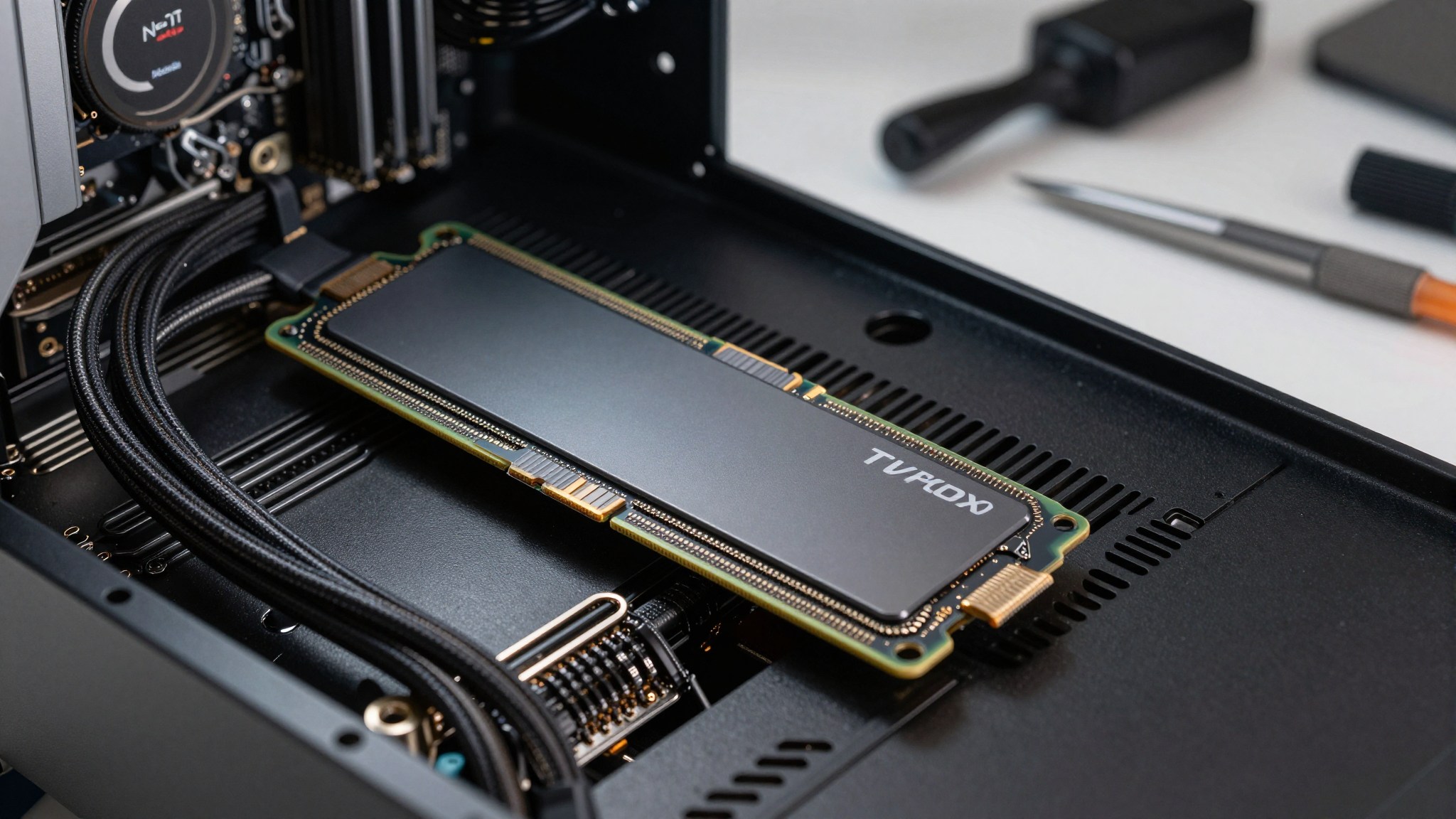
SSDs generate heat primarily from the NAND flash memory and the controller. The amount of heat generated depends on the workload and the drive's design. High-performance SSDs, especially NVMe drives, tend to generate more heat than slower SATA drives. Poor airflow inside the computer case can also contribute to overheating, as can proximity to other heat-generating components.
Most SSDs have built-in temperature sensors that monitor the drive's temperature. When the temperature reaches a certain threshold, the controller will initiate thermal throttling to reduce the drive's power consumption and heat output. The exact throttling behavior varies depending on the SSD model, but it typically involves reducing the clock speed of the controller and limiting the write speeds.
So, how can you prevent thermal throttling? The first step is to ensure your computer case has adequate airflow. Make sure the fans are clean and working properly, and consider adding additional fans if necessary. Pay attention to the placement of the SSD. Avoid installing it directly next to other heat-generating components, such as the GPU. If you're using an NVMe SSD, consider installing it in a slot that has a heatsink. Many motherboards now come with dedicated M.2 heatsinks for NVMe drives.
You can monitor your SSD's temperature using various utilities, such as CrystalDiskInfo or HWMonitor. Keep an eye on the temperature during heavy workloads, such as gaming or video editing. If the temperature consistently exceeds the recommended maximum (typically around 70-80°C), it's a sign that you need to improve your cooling.
One particularly hot summer in 2024, I built a high-end gaming rig for a client who lived in an apartment with no air conditioning. After a few weeks, he started complaining about severe performance drops during intense gaming sessions. After some remote troubleshooting, I discovered that his NVMe SSD was consistently hitting temperatures above