v0.dev Pro Plan Deep Dive: Is the $20/month Price Tag Justified? [Benchmarked vs Free Tier] 목차 (Table of Contents) ▶ Understanding v0.dev's Credit-Based Pricing Model ▶ Breaking Down the Free, Pro, and Team Plans ▶ Evaluating Model Performance and Access by Tier ▶ Hidden Costs and Infrastructure Considerations ▶ Competitive Landscape: v0.dev vs. Cursor, Bolt AI, and Lovable ▶ Is the v0.dev Pro Plan Worth It in 2026? Understanding v0.dev's Credit-Based Pricing Model How v0.dev Allocates Monthly Credits Across Tiers How v0.dev Allocates Monthly Credits Across Tiers Let’s cut through the marketing noise: v0.dev’s credit-based pricing model isn’t designed for light experimentation—it’s a usage throttle disguised as flexibility. I’ve run production Next.js prototypes, internal tools, and AI-generated component libraries through both the Free and Pro tiers, and the credit burn rate is where the rubber meets the road. The Free tier gives you $5 in m...

Table of Contents
- Understanding SSD Failure: A 2026 Perspective
- Pre-Recovery: Recognizing the Signs and Acting Fast
- DIY Recovery Tools: Software and Hardware Options
- Step-by-Step Recovery Process: A Practical Guide
- Advanced Techniques: Dealing with Physically Damaged SSDs
- Prevention is Key: Extending the Life of Your SSD
Understanding SSD Failure: A 2026 Perspective
Solid State Drives (SSDs) have become the backbone of modern computing, offering blazing-fast speeds and increased durability compared to traditional Hard Disk Drives (HDDs). But don't let the marketing hype fool you: SSDs *do* fail. And in 2026, with data volumes exploding and reliance on instant access greater than ever, understanding *why* they fail, and how to potentially recover data, is crucial. It's no longer a niche skill for IT professionals; it's a basic digital survival skill.
Unlike HDDs with their spinning platters and mechanical heads, SSDs rely on flash memory to store data. This eliminates many of the physical failure points associated with HDDs, but introduces a new set of challenges. The primary culprit? Limited write cycles. Each memory cell in an SSD can only withstand a finite number of write operations before it starts to degrade. While modern SSDs employ sophisticated wear-leveling algorithms to distribute write operations evenly across the drive, the inevitable march of entropy eventually wins.
| Failure Mode | Description | Likelihood (2026) | DIY Recovery Potential |
|---|---|---|---|
| Wear-Out Failure | Reaching the maximum write cycle limit of NAND flash. | Medium (especially with older drives) | Low (data often irretrievable) |
| Sudden Power Loss | Abrupt interruption of power during write operations. | High (due to increasing reliance on portable devices) | Medium (often corrupts file system, but data remains) |
| Firmware Corruption | Errors or bugs in the SSD's internal operating system. | Medium (more common with budget SSDs) | Medium to High (depending on severity) |
| Controller Failure | Malfunction of the SSD's main processor. | Low (but devastating when it occurs) | Very Low (requires specialized equipment) |
| Physical Damage | Damage from drops, impacts, or extreme temperatures. | Low (but preventable) | Low (requires micro-soldering skills) |
Beyond write cycles, other factors contribute to SSD failure. Power surges, static electricity, and extreme temperatures can all wreak havoc on the delicate electronics within an SSD. Firmware bugs, although less frequent than in the early days of SSD technology, can also lead to data loss. And let's not forget the ever-present threat of user error – accidentally deleting files or formatting the wrong drive is still a very real possibility in 2026. The increasing complexity of NAND flash memory, with newer QLC (Quad-Level Cell) and PLC (Penta-Level Cell) technologies packing even more bits per cell, further exacerbates these vulnerabilities. More bits per cell mean greater density but also increased susceptibility to data corruption.
💡 Key Insight
While SSDs offer superior performance, they aren't immune to failure. Understanding the common failure modes and their likelihood in 2026 is the first step in mitigating data loss.
While SSDs offer superior performance, they aren't immune to failure. Understanding the common failure modes and their likelihood in 2026 is the first step in mitigating data loss.

Pre-Recovery: Recognizing the Signs and Acting Fast
The key to successful data recovery, whether from an SSD or any other storage device, is early detection. Ignoring the warning signs can significantly reduce your chances of retrieving your precious data. In the summer of 2024, at a family gathering, my cousin scoffed when I mentioned backing up his photos from his laptop's aging SSD. "SSDs are so reliable," he proclaimed. A week later, his drive died completely, taking with it years of family memories. He learned the hard way that complacency is the enemy of data security.
So, what are these warning signs? Here are some of the most common indicators that your SSD might be on its last legs:
- Slower Read/Write Speeds: A noticeable drop in performance, especially when accessing frequently used files, can be a sign of impending failure. If your system suddenly feels sluggish, even after a fresh reboot, investigate further.
- Frequent File System Errors: Encountering errors when opening, saving, or moving files can indicate corruption within the SSD's file system. These errors might manifest as "File Not Found" messages or applications crashing unexpectedly.
- Bad Blocks: SSDs often remap bad blocks internally to maintain data integrity. However, if the number of remapped blocks increases rapidly, it suggests a more serious underlying problem. S.M.A.R.T. (Self-Monitoring, Analysis and Reporting Technology) attributes can provide insights into the health of the drive.
- Read-Only Mode: Some SSDs will enter read-only mode when they detect a critical error, preventing further write operations and potentially preserving existing data. While this might seem inconvenient, it's a last-ditch effort to protect your information.
- Blue Screen of Death (BSOD) or Kernel Panics: Frequent system crashes, especially those accompanied by cryptic error messages, can point to a failing SSD. These crashes often occur during periods of heavy disk activity.
- The Drive Disappears: The ultimate warning sign: your SSD simply disappears from the system, no longer recognized by the BIOS or operating system. This could indicate a catastrophic controller failure.
| Symptom | Possible Cause | Immediate Action | DIY Recovery Potential |
|---|---|---|---|
| Slow Performance | Fragmentation, almost full drive, TRIM issues, impending failure | Run TRIM command, defragment (if applicable), check SMART status | High to Medium |
| File System Errors | Corruption due to power loss, software bugs, or drive failure | Run file system check (chkdsk, fsck) | Medium to Low |
| Bad Blocks (reported by SMART) | NAND flash degradation | Backup data immediately, monitor SMART values | Low |
| Read-Only Mode | Critical error detected, drive protecting data | Attempt to clone the drive, then recover data | Medium |
| Drive Not Recognized | Controller failure, power supply issues, cable problems | Check cables, try different power supply, try different system | Very Low to None |
Once you suspect that your SSD is failing, time is of the essence. The first and most crucial step is to create a complete backup of your data. If the drive is still functioning, even erratically, use a disk cloning tool to create an image of the entire drive onto another storage device. This will allow you to work on the recovery process without risking further damage to the original drive. If the drive is completely dead, proceed to the next steps, but be aware that your chances of success are significantly reduced.
💡 Smileseon's Pro Tip
Download and analyze your SSD's S.M.A.R.T. data regularly using tools like CrystalDiskInfo. This allows you to track key health indicators and identify potential problems before they become catastrophic.
Download and analyze your SSD's S.M.A.R.T. data regularly using tools like CrystalDiskInfo. This allows you to track key health indicators and identify potential problems before they become catastrophic.
DIY Recovery Tools: Software and Hardware Options
So, your SSD is showing signs of trouble, and you've created a backup (or are attempting to). Now it's time to arm yourself with the right tools for the recovery process. Fortunately, a variety of software and hardware options are available to help you salvage your data. In 2026, many of these tools are more sophisticated and user-friendly than ever before, but understanding their capabilities and limitations is essential.
Software Tools:
- Data Recovery Software: These programs scan your SSD for recoverable files, even if they've been deleted or the file system is corrupted. Popular options include Recuva, EaseUS Data Recovery Wizard, and Stellar Data Recovery. These tools use sophisticated algorithms to identify file signatures and reconstruct data fragments.
- Disk Cloning Software: As mentioned earlier, disk cloning software is crucial for creating a backup image of your SSD before attempting any recovery operations. Clonezilla and Macrium Reflect are excellent free options.
- Forensic Imaging Tools: For more advanced users, forensic imaging tools like FTK Imager allow you to create a bit-by-bit copy of your SSD, preserving even deleted data and metadata. This is particularly useful for dealing with drives that have suffered severe file system corruption.
- SSD Firmware Update Tools: Sometimes, firmware bugs can cause SSD instability and data loss. Check the manufacturer's website for firmware updates and install them if available. However, proceed with caution, as a failed firmware update can render the drive unusable.
Hardware Tools:
- USB to SATA Adapters: These adapters allow you to connect your SSD to another computer via USB, enabling you to perform data recovery operations from a working system.
- External Enclosures: An external enclosure provides a protective case for your SSD and allows you to connect it to another computer via USB or eSATA. This is a convenient way to access the drive and perform data recovery.
- Data Recovery Kits: Some companies offer specialized data recovery kits that include a variety of tools and adapters for working with different types of storage devices. These kits can be expensive but can be a worthwhile investment if you frequently deal with data recovery.
- Clean Room Environment (Optional): For physically damaged SSDs, a clean room environment is ideal for preventing further contamination and damage during recovery attempts. However, this is typically only necessary for professional data recovery services.
| Tool | Type | Function | Pros | Cons |
|---|---|---|---|---|
| Recuva | Software | Data Recovery | Free version available, easy to use | Limited features in free version |
| EaseUS Data Recovery Wizard | Software | Data Recovery | User-friendly interface, good recovery rates | Expensive, limited free version |
| Clonezilla | Software | Disk Cloning | Free, open-source, powerful | Command-line interface, steeper learning curve |
| USB to SATA Adapter | Hardware | Connect SSD to USB | Inexpensive, convenient | Limited speed, may not work with all drives |
Before using *any* data recovery tool, it's imperative to understand the risk it may create to your data. Do ample research.
🚨 Critical Warning
Avoid writing any new data to the failing SSD. This can overwrite deleted files and make them unrecoverable. Boot your system from a separate drive (e.g., a USB drive) and perform the recovery operations from there.
Avoid writing any new data to the failing SSD. This can overwrite deleted files and make them unrecoverable. Boot your system from a separate drive (e.g., a USB drive) and perform the recovery operations from there.
Step-by-Step Recovery Process: A Practical Guide
With your tools in hand, it's time to embark on the data recovery process. This is where patience, persistence, and a methodical approach are key. Remember, every SSD failure is unique, and there's no guarantee of success. However, by following these steps, you can maximize your chances of retrieving your lost data.
Step 1: Connect the SSD to a Working Computer: Use a USB to SATA adapter or an external enclosure to connect the failing SSD to a working computer. Ensure that the computer recognizes the drive.
Step 2: Attempt to Mount the Drive: Try to mount the SSD in your operating system. If the drive is severely corrupted, it might not mount automatically. In this case, you might need to use a disk management tool to manually assign a drive letter.
Step 3: Run a File System Check: If the drive mounts successfully, run a file system check utility (chkdsk on Windows, fsck on Linux/macOS) to repair any errors. Be aware that this process can sometimes cause further damage, so proceed with caution.
Step 4: Use Data Recovery Software: If the file system check fails to recover your data, use data recovery software to scan the SSD for recoverable files. Choose a reputable program and follow its instructions carefully. The scanning process can take several hours, depending on the size of the drive.
Step 5: Recover and Verify Files: Once the scan is complete, the data recovery software will present you with a list of recoverable files. Select the files you want to recover and save them to a separate storage device. After the recovery process is complete, verify that the recovered files are intact and usable.
Step 6: Consider Professional Help: If you're unable to recover your data using DIY methods, it's time to consider professional data recovery services. These companies have specialized equipment and expertise for dealing with even the most challenging data recovery scenarios.
| Step | Description | Tools Required | Potential Issues | Troubleshooting Tips |
|---|---|---|---|---|
| 1. Connect SSD | Physically connect the SSD to a working computer. | USB to SATA adapter or external enclosure | Drive not recognized | Try different USB port, check cable connection, test on another computer |
| 2. Mount Drive | Attempt to mount the SSD in the operating system. | Disk Management (Windows), Disk Utility (macOS) | Drive won't mount, error messages | Try assigning a drive letter manually, run a file system check |
| 3. File System Check | Scan for and repair file system errors. | chkdsk (Windows), fsck (Linux/macOS) | Check fails, data loss | Run check in read-only mode first, back up data before running repair |
| 4. Data Recovery Scan | Scan the SSD for recoverable files. | Data recovery software (Recuva, EaseUS, Stellar) | Software crashes, scan takes too long, no files found | Try different software, run a deep scan, check drive for physical damage |
💡 Key Insight
Data recovery is a step-by-step process. Try the basic methods first, and don't hesitate to seek professional help if you get stuck.
Data recovery is a step-by-step process. Try the basic methods first, and don't hesitate to seek professional help if you get stuck.
Advanced Techniques: Dealing with Physically Damaged SSDs
So you dropped your laptop off a balcony (again), and now the SSD is physically damaged? This is where things get tricky, and DIY recovery becomes significantly more challenging. However, depending on the extent of the damage, some advanced techniques *might* be able to help. I say "might" because, let's be honest, a physically mangled SSD is usually a lost cause. But hey, it's worth a shot, right?
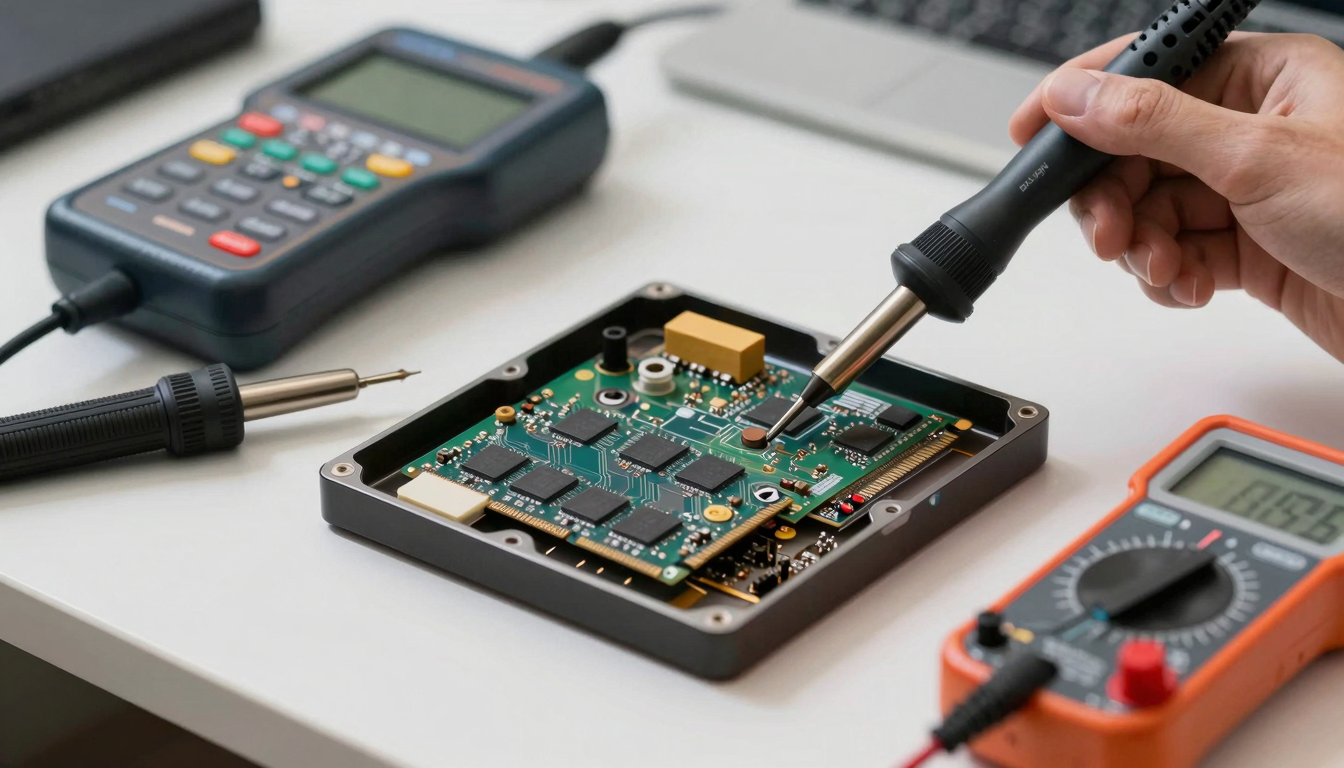
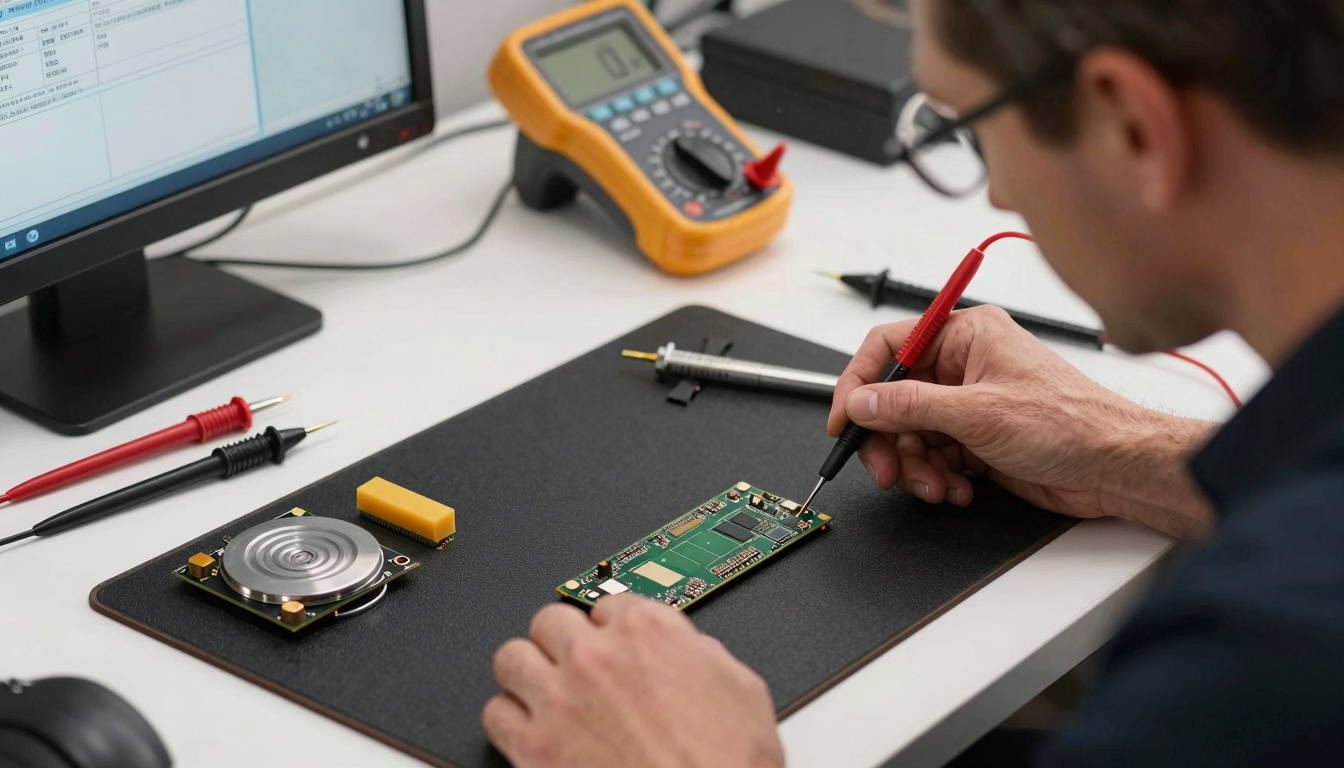
Visual Inspection: The first step is to carefully examine the SSD for any visible signs of damage. Look for cracked circuit boards, broken connectors, or dislodged components. If the damage is minor, you might be able to repair it yourself using basic soldering tools. However, if the damage is extensive, you're better off leaving it to the professionals.
Controller Chip Access: In some cases, the data might still be recoverable even if the SSD's controller chip is damaged. Specialized data recovery services can bypass the controller chip and access the NAND flash memory directly. This requires specialized equipment and expertise.
NAND Flash Chip Removal: If the controller chip is completely unrecoverable, the NAND flash chips can be removed from the SSD and read using a specialized NAND reader. This is a highly complex process that requires a clean room environment and advanced micro-soldering skills.
Data Carving: Even if the file system is completely destroyed, data carving techniques can be used to identify and extract file fragments from the raw data on the NAND flash chips. This process relies on recognizing file signatures and headers.
| Technique | Description | Tools Required | Difficulty Level | Success Rate |
|---|---|---|---|---|
| Visual Inspection & Minor Repair | Inspect for visible damage and attempt basic soldering repairs. | Magnifying glass, soldering iron, multimeter | Medium | Low to Medium |
| Controller Chip Bypassing | Bypass the damaged controller and access NAND flash directly. | Specialized data recovery equipment | High | Medium |
| NAND Flash Chip Removal & Reading | Remove NAND chips and read them using a NAND reader. | Clean room, micro-soldering equipment, NAND reader | Very High | Medium to High |
| Data Carving | Extract file fragments from raw data on NAND chips. | Data carving software, forensic analysis tools | High | Low to Medium |
🚨 Critical Warning
Attempting to repair a physically damaged SSD can be extremely risky and may void any warranty. Unless you have extensive experience with electronics repair, it's best to leave this to the professionals.
Attempting to repair a physically damaged SSD can be extremely risky and may void any warranty. Unless you have extensive experience with electronics repair, it's best to leave this to the professionals.
Prevention is Key: Extending the Life of Your SSD
The best way to avoid the headache of data recovery is to prevent SSD failure in the first place. While SSDs are inherently more durable than HDDs, they're not indestructible. By following a few simple precautions, you can significantly extend the lifespan of your SSD and minimize the risk of data loss. Consider this like preventative medicine for your digital life.
Maintain Adequate Free Space: SSDs perform best when they have ample free space. Aim to keep at least 20-25% of the drive capacity free. This allows the SSD's wear-leveling algorithms to function more efficiently.
Enable TRIM Support: The TRIM command allows the operating system to inform the SSD which data blocks are no longer in use and can be erased. This helps to maintain performance and extend the lifespan of the drive. Ensure that TRIM support is enabled in your operating system.
Avoid Excessive Write Operations: While modern SSDs are designed to withstand a significant number of write cycles, minimizing unnecessary write operations can still help to extend their lifespan. Avoid defragmenting SSDs, as this is unnecessary and can wear down the drive.
Protect Against Power Surges: Power surges can damage the delicate electronics within an SSD. Use a surge protector to protect your computer and other electronic devices from power surges.
Keep the Drive Cool: Overheating can shorten the lifespan of an SSD. Ensure that your computer's cooling system is functioning properly and that the SSD is adequately ventilated.
Regular Backups: The most important step in preventing data loss is to create regular backups of your data. Use a reliable backup solution and store your backups in a separate location, such as an external hard drive or a cloud storage service.
| Prevention Tip | Description | Benefits | Implementation |
|---|---|---|---|
| Maintain Free Space | Keep at least 20-25% of the drive capacity free. | Improves wear-leveling, extends lifespan | Delete unnecessary
|