v0.dev Pro Plan Deep Dive: Is the $20/month Price Tag Justified? [Benchmarked vs Free Tier] 목차 (Table of Contents) ▶ Understanding v0.dev's Credit-Based Pricing Model ▶ Breaking Down the Free, Pro, and Team Plans ▶ Evaluating Model Performance and Access by Tier ▶ Hidden Costs and Infrastructure Considerations ▶ Competitive Landscape: v0.dev vs. Cursor, Bolt AI, and Lovable ▶ Is the v0.dev Pro Plan Worth It in 2026? Understanding v0.dev's Credit-Based Pricing Model How v0.dev Allocates Monthly Credits Across Tiers How v0.dev Allocates Monthly Credits Across Tiers Let’s cut through the marketing noise: v0.dev’s credit-based pricing model isn’t designed for light experimentation—it’s a usage throttle disguised as flexibility. I’ve run production Next.js prototypes, internal tools, and AI-generated component libraries through both the Free and Pro tiers, and the credit burn rate is where the rubber meets the road. The Free tier gives you $5 in m...
Table of Contents
The Myth of AI Optimization: Why Your PC Still Crawls
The allure of instant gratification is strong, particularly when confronting a sluggish PC. Advertisements for AI-powered optimizers promise effortless solutions, yet often deliver underwhelming results. While some software adjustments can provide marginal improvements, they rarely address the core reasons for performance degradation. In essence, these fixes tend to be superficial, akin to applying a fresh coat of paint to a car with a failing engine.
These programs frequently concentrate on easily managed issues, such as clearing temporary files, disabling startup applications – tasks readily performed manually – and, ironically, defragmenting HDDs, an archaic practice largely irrelevant to modern SSDs. The genuine bottlenecks, the hardware-related problems, are often left untouched, rendering the supposed "optimization" largely ineffective.
| Optimization Method | Potential Performance Boost | Risk Factor | Effort Required |
|---|---|---|---|
| AI-Powered Optimizer | 5-10% (Mostly Perceived) | Medium (Bloatware, Malware Risk) | Low |
| Manual Software Tweaks (Startup Programs, Temp Files) | 5-15% (Highly Variable) | Low | Medium |
| SSD Upgrade | 200-500% (Significant) | Low | Medium |
| RAM Upgrade | 20-50% (For RAM-Limited Systems) | Low | Medium |
| CPU/GPU Upgrade | 50-300% (Depending on Upgrade) | Medium | High |
| Thorough Dusting and Cleaning | 10-30% (For Overheated Systems) | Low | Medium |
A more effective approach involves a hands-on assessment of the hardware. Addressing these issues directly provides tangible and lasting improvements. While software can play a role, true PC optimization in 2026 demands a focus on the symbiotic relationship between software and a meticulously maintained physical system.
💡 Key Insight
Instead of relying on speculative AI fixes, prioritize hardware analysis and intervention for concrete and enduring PC performance gains.
Instead of relying on speculative AI fixes, prioritize hardware analysis and intervention for concrete and enduring PC performance gains.
Dust, Heat, and Neglect: The Hardware Culprits
Imagine the interior of your PC as a miniature ecosystem. Over time, dust infiltrates the system, obstructing airflow and insulating components. This insidious accumulation prevents efficient heat dissipation, leading to thermal throttling, wherein your CPU and GPU automatically lower their operating frequencies to avert irreversible damage. The consequence is a perceptible and frustrating decline in performance.
Effective cooling hinges on more than just sophisticated hardware; consistent maintenance is equally critical. I recall a recent consultation where a client attributed his PC's abysmal gaming performance to an underpowered processor. However, after a methodical internal cleaning, the CPU temperature decreased by 30°C, restoring the system to its full capabilities. Neglecting basic maintenance often leads to unnecessary and expensive component replacements.
| Component | Dust Impact | Symptoms | Cleaning Frequency |
|---|---|---|---|
| CPU Heatsink | Reduced heat dissipation | High CPU temperatures, thermal throttling, system instability | Every 3-6 months |
| GPU Heatsink | Reduced heat dissipation | High GPU temperatures, thermal throttling, artifacting, crashes | Every 3-6 months |
| Case Fans | Reduced airflow | Overall system overheating, poor component cooling | Every 1-3 months |
| Power Supply | Overheating, reduced efficiency | System instability, random shutdowns, potential component damage | Every 6-12 months (professional cleaning recommended) |
| RAM Modules | Insulation, potential overheating | Memory errors, system instability, crashes | Every 6-12 months |
| Hard Drives/SSDs | Indirect impact via overall system temperature | Slower performance, potential data loss | N/A (keep case airflow good) |
A regular cleaning regimen with compressed air and suitable brushes can dramatically elevate system performance and extend component lifecycles. Ensure your PC resides in an open, well-ventilated environment. Proper airflow mitigates heat buildup, fostering an environment conducive to optimal operation.
SSD vs. HDD in 2026: The Speed Bottleneck
The presence of a traditional hard disk drive (HDD) in a modern PC is akin to fitting a state-of-the-art sports car with wooden wheels. Solid-state drives (SSDs) have become ubiquitous for their transformative impact on system responsiveness. HDDs, with their mechanical spinning platters and read/write heads, impose a significant latency penalty. Conversely, SSDs utilize flash memory, facilitating near-instantaneous data retrieval.
The performance delta is substantial. Boot times are drastically reduced, applications launch with remarkable speed, and file transfers occur in a fraction of the time. The transition from HDD to SSD is arguably the most transformative upgrade possible for an aging PC.
| Feature | HDD (Hard Disk Drive) | SSD (Solid State Drive) | NVMe SSD |
|---|---|---|---|
| Data Access Time | 5-10 milliseconds | 0.1-1 millisecond | 0.01-0.05 milliseconds |
| Read Speed | 50-150 MB/s | 200-550 MB/s | 1000-7000+ MB/s |
| Write Speed | 50-150 MB/s | 200-550 MB/s | 1000-7000+ MB/s |
| Durability | More susceptible to physical damage | More resistant to physical damage | More resistant to physical damage |
| Power Consumption | Higher | Lower | Lower |
| Price (per GB) | Lower | Higher | Higher |
| Best Use Case | Archival storage, large file storage (if cost is a primary concern) | Operating system drive, application drive, gaming | Demanding applications, video editing, high-performance gaming |
For users seeking the pinnacle of performance, consider upgrading to an NVMe SSD. These drives leverage the PCIe bus, providing significantly improved bandwidth. Though presenting a higher initial cost, the substantial gains, particularly for those working with large multimedia files or engaging in advanced gaming, make NVMe drives a worthwhile investment.
💡 Smileseon's Pro Tip
When migrating to an SSD, leverage disk cloning software to seamlessly transfer your operating system, applications, and data, avoiding time-consuming reinstallation processes.
When migrating to an SSD, leverage disk cloning software to seamlessly transfer your operating system, applications, and data, avoiding time-consuming reinstallation processes.
RAM Upgrades: More Than Just a Number
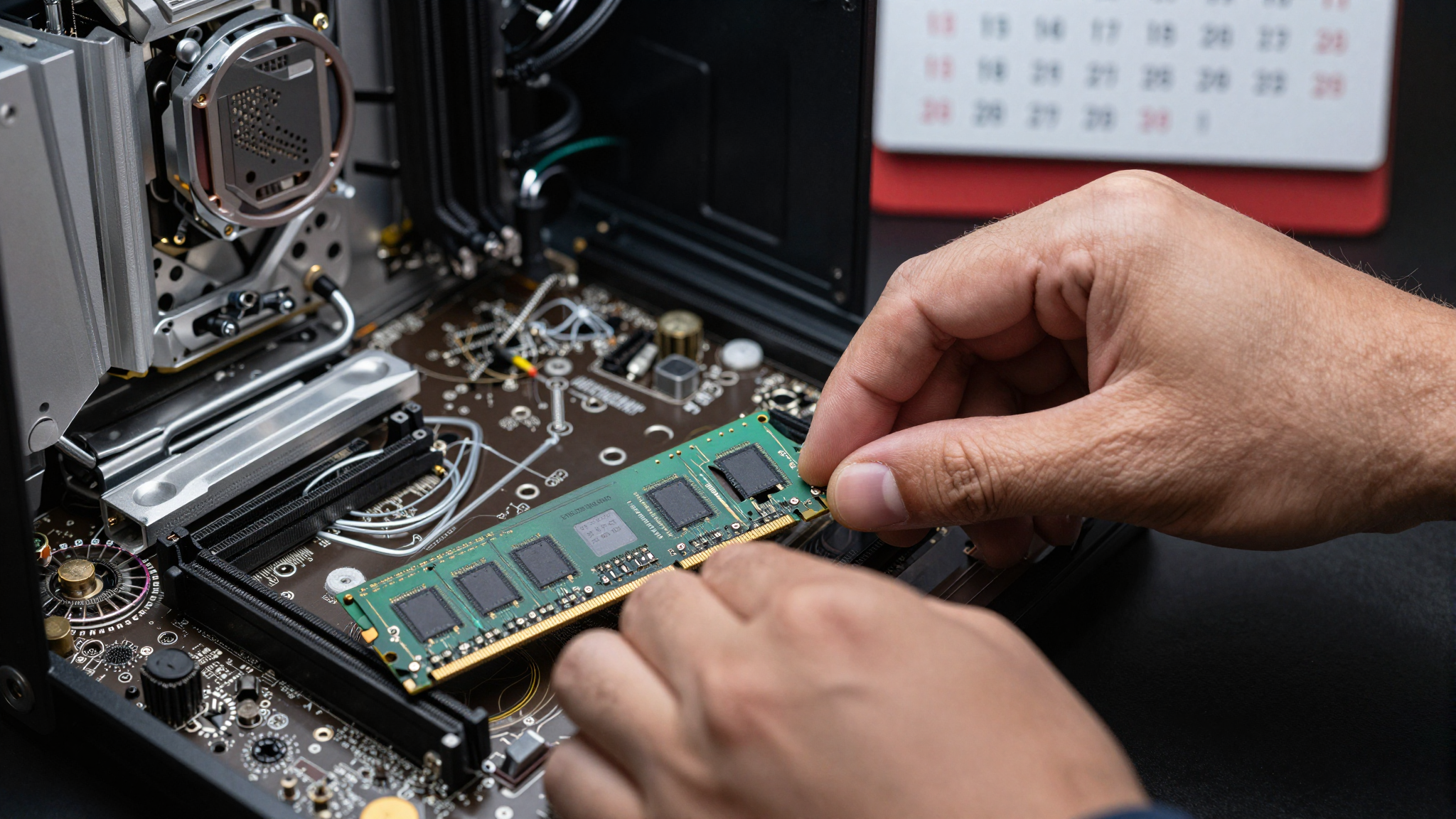
Random Access Memory (RAM) serves as your PC's ephemeral workspace, storing frequently accessed data for rapid retrieval. Insufficient RAM forces the system to rely on the significantly slower hard drive as virtual memory, inducing performance bottlenecks, particularly under heavy multitasking loads or when running demanding applications.
In 2026, 8GB of RAM is considered a bare minimum, suitable only for elementary tasks. For the vast majority of users, 16GB represents the optimal balance between cost and performance, accommodating typical multitasking and light gaming needs. Power users, such as video editors, professional gamers, and content creators, may require 32GB or even 64GB to manage resource-intensive workflows without compromise.
| RAM Amount | Typical Usage | Pros | Cons |
|---|---|---|---|
| 4GB | Bare minimum, basic web browsing, light office tasks | Lowest cost | Struggles with multitasking, slow performance, limited application support |
| 8GB | General use, moderate multitasking, light gaming | Affordable, suitable for everyday tasks | May struggle with demanding applications and heavy multitasking |
| 16GB | Most users, gaming, video editing (entry-level), moderate content creation | Optimal balance of performance and cost, handles most tasks with ease | May be insufficient for professional video editing or high-end gaming |
| 32GB | Professional video editing, high-end gaming, heavy multitasking, content creation | Handles demanding workloads without issue, future-proof for upcoming software | Higher cost, may be overkill for basic users |
| 64GB+ | Extreme workloads, 3D modeling, scientific simulations, large datasets | Maximum performance for the most demanding tasks | Very high cost, unnecessary for most users |
🚨 Critical Warning
Incompatible RAM configurations may lead to system malfunctions or boot failures. Rigorously verify compatibility before proceeding with any RAM upgrade.
Incompatible RAM configurations may lead to system malfunctions or boot failures. Rigorously verify compatibility before proceeding with any RAM upgrade.
Power Supply Units: The Unsung Heroes of Performance
Frequently overlooked during PC upgrades, the power supply unit (PSU) is the backbone of your system, delivering the necessary electricity to all components. A substandard or failing PSU can manifest as system instability, unexpected shutdowns, and potential hardware damage. Furthermore, an inefficient unit can contribute to increased heat output and elevated energy consumption.
Selection of an appropriate PSU is especially pertinent when upgrading the CPU or GPU, as power demands will commensurately increase. As a general guideline, aim for a PSU exhibiting a wattage capacity at least 20% higher than your system's maximum power draw. Many online PSU calculators can accurately estimate your system's power requirements.
| PSU Rating | Efficiency at 20% Load | Efficiency at 50% Load | Efficiency at 100% Load | Typical Applications |
|---|---|---|---|---|
| 80+ | N/A | 80% | N/A | Basic systems, older builds |
| 80+ Bronze | 82% | 85% | 82% | Entry-level gaming PCs, general-purpose desktops |
| 80+ Silver | 85% | 88% | 85% | Mid-range gaming PCs, workstations |
| 80+ Gold | 87% | 90% | 87% | High-end gaming PCs, professional workstations |
| 80+ Platinum | 90% | 92% | 89% | Enthusiast builds, power-sensitive environments |
| 80+ Titanium | 92% | 94% | 90% | Server-grade systems, maximum efficiency requirements |
Furthermore, prioritize PSUs possessing an 80+ Bronze, Silver, Gold, Platinum, or Titanium certification. These certifications guarantee a certain level of energy efficiency, with higher ratings indicating superior energy conversion. Greater efficiency reduces wasted energy, decreases heat generation, and lowers electricity bills. Invest wisely in your PSU; it is the foundation of a stable and enduring computing platform.
Cooling Solutions: Keeping Your Rig Alive (and Fast)
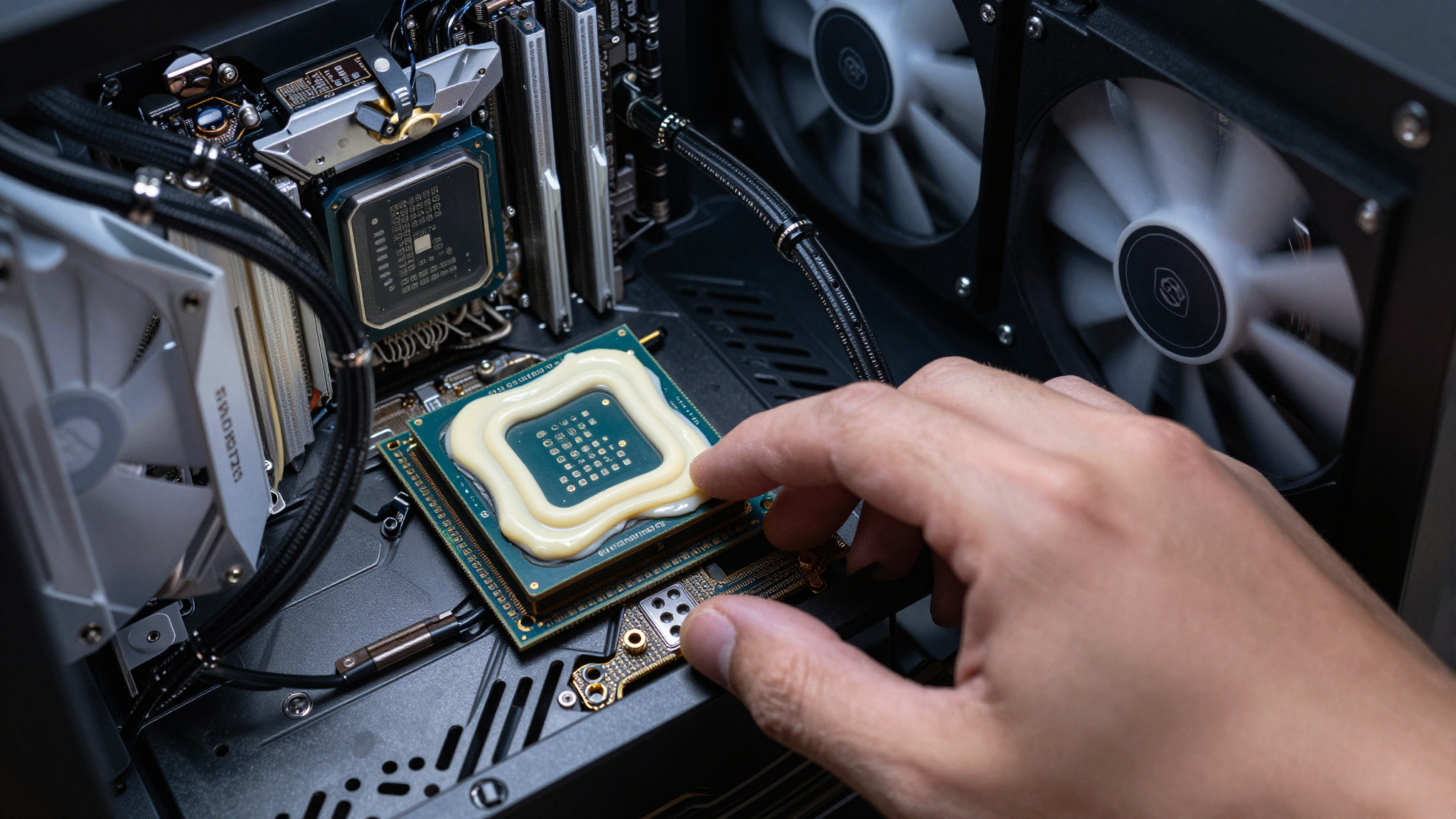
Effective thermal management is indispensable for optimal PC performance. While meticulous dust removal can mitigate certain cooling deficiencies, demanding CPUs and GPUs may necessitate an upgraded cooling solution to prevent thermal throttling and preserve stability. Stock coolers, typically bundled with CPUs, often prove inadequate for sustained high-performance workloads.
Broadly, CPU cooling solutions fall into two categories: air coolers and liquid coolers. Air coolers utilize a heatsink and fan assembly to dissipate heat, while liquid coolers employ a water block in conjunction with a radiator and fans. Liquid coolers generally offer superior cooling potential but command a higher price point and require a somewhat more involved installation procedure.
| Cooling Type | Cooling Performance | Noise Level | Cost | Installation Complexity | Maintenance |
|---|---|---|---|---|---|
| Stock Air Cooler | Low | Moderate | Low | Easy | Minimal |
| Aftermarket Air Cooler | Moderate to High | Low to Moderate | Moderate | Moderate | Minimal |
| All-in-One (AIO) Liquid Cooler | High | Low to Moderate | High | Moderate | Minimal |
| Custom Liquid Cooling Loop | Very High | Low (depending on fans) | Very High | Very High | High (requires regular maintenance and fluid changes) |
For GPUs, factory-installed cooling solutions typically suffice, but enthusiasts engaging in overclocking or utilizing inherently hot-running cards may find aftermarket coolers beneficial. By improving heat dissipation and reducing noise levels, these specialized solutions can significantly extend the lifespan of your GPU. Prioritizing effective cooling safeguards performance and ensures the longevity of your critical components.
📊 Fact Check
Sustained CPU temperatures exceeding 90°C can dramatically reduce the lifespan of your processor. A proactive investment in thermal management can therefore translate into substantial long-term cost savings.
Sustained CPU temperatures exceeding 90°C can dramatically reduce the lifespan of your processor. A proactive investment in thermal management can therefore translate into substantial long-term cost savings.
Frequently Asked Questions (FAQ)
Q1. How often should I clean my PC?
A1. A maintenance schedule encompassing thorough cleaning every 3 to 6 months is generally advisable. However, systems operating in dusty environments or those housing pets may necessitate more frequent attention.
Q2. What tools do I need to clean my PC?
A2. The essential toolkit includes compressed air canisters, a soft-bristled brush, and, for stubborn residues, isopropyl alcohol.
Q3. Can I use a vacuum cleaner to clean my PC?
A3. The use of vacuum cleaners is discouraged due to the potential for static discharge, which could irrevocably damage sensitive internal components.
Q4. How do I check my CPU temperature?
A4. Dedicated hardware monitoring utilities, such as HWMonitor or Core Temp, provide real-time CPU temperature readouts.
Q5. What is a safe CPU temperature?
A5. Operating temperatures below 80°C are generally considered safe for prolonged CPU operation. Temperatures exceeding 90°C warrant immediate investigation and remedial action.
Q6. How do I check my RAM usage?
A6. RAM utilization can be monitored via the Task Manager in Windows and the Activity Monitor in macOS.
Q7. How much RAM do I need for gaming?
A7. 16GB of RAM is a general recommendation for contemporary gaming, but more demanding titles may benefit from 32GB.
Q8. What is the difference between DDR4 and DDR5 RAM?
A8. DDR5 RAM offers higher speeds and improved power efficiency relative to DDR4. However, DDR5 requires a compatible motherboard.
Q9. How do I install RAM?
A9. The insertion of RAM modules should be performed in strict accordance with your motherboard's instruction manual. Ensure the alignment of the module notch with the corresponding notch on the RAM slot.
Q10. What is an SSD?
A10. A solid-state drive (SSD) employs flash memory technology for data storage, offering superior speed characteristics compared to traditional HDDs.
Q11. How do I install an SSD?
A11. SSD installation necessitates connection to a SATA port on the motherboard and provision of power via a SATA power cable.
Q12. How do I clone my HDD to an SSD?
A12. Disk cloning software, such as Macrium Reflect or EaseUS Todo Backup, facilitates the seamless migration of data from a traditional HDD to a solid-state drive.
Q13. What is NVMe?
A13. Non-Volatile Memory Express (NVMe) denotes a high-performance interface protocol for SSDs that interfaces directly with the PCIe bus.
Q14. How do I choose the right power supply?
A14. The selection of an adequate PSU necessitates the calculation of your system's aggregate power draw and selecting a unit exhibiting a wattage capacity margin of at least 20%.
Q15. What is PSU efficiency rating?
A15. The efficiency rating of a PSU reflects the proportion of AC power converted to DC power, with higher ratings indicating greater efficiency and reduced energy waste.
Q16. How do I install a CPU cooler?
A16. CPU cooler installation should be performed in accordance with the manufacturer's instruction manual. It is imperative to apply thermal paste to the CPU integrated heat spreader (IHS) prior to installing the cooler.
Q17. What is thermal paste?
A17. Thermal interface material (TIM), often called thermal paste, fills microscopic irregularities to facilitate thermal transfer from the CPU IHS to the cooler.
Q18. How often should I replace thermal paste?
A18. Thermal paste replacement is recommended every 12-24 months, or whenever the CPU cooler is detached.
Q19. What is a liquid cooler?
A19. A liquid cooling solution (LCS) employs a liquid coolant to transport heat from the CPU or GPU to a radiator, where heat is dissipated into the ambient environment.