v0.dev Pro Plan Deep Dive: Is the $20/month Price Tag Justified? [Benchmarked vs Free Tier] 목차 (Table of Contents) ▶ Understanding v0.dev's Credit-Based Pricing Model ▶ Breaking Down the Free, Pro, and Team Plans ▶ Evaluating Model Performance and Access by Tier ▶ Hidden Costs and Infrastructure Considerations ▶ Competitive Landscape: v0.dev vs. Cursor, Bolt AI, and Lovable ▶ Is the v0.dev Pro Plan Worth It in 2026? Understanding v0.dev's Credit-Based Pricing Model How v0.dev Allocates Monthly Credits Across Tiers How v0.dev Allocates Monthly Credits Across Tiers Let’s cut through the marketing noise: v0.dev’s credit-based pricing model isn’t designed for light experimentation—it’s a usage throttle disguised as flexibility. I’ve run production Next.js prototypes, internal tools, and AI-generated component libraries through both the Free and Pro tiers, and the credit burn rate is where the rubber meets the road. The Free tier gives you $5 in m...
Laptop Overheating: A Premium Guide to Diagnosis and Repair
Table of Contents
- Understanding the Culprits: Why Laptops Overheat
- Emergency : Immediate Actions for Overheating Laptops
- Systematic Diagnosis: Pinpointing the Source of the Thermal Issue
- The Art of PC Maintenance: DIY Cooling Solutions
- Investment Strategies: When to Upgrade or Replace Components
- Long-Term Cooling: Proactive Measures for Sustained Performance
Understanding the Culprits: Why Laptops Overheat
A high-performance laptop, crippled by thermal issues, represents a common frustration in today's digital landscape. Beyond mere inconvenience, overheating impacts system performance, component longevity, and overall reliability. This guide, drawing on extensive field experience, will equip you with the knowledge and tools to diagnose and rectify thermal problems affecting your portable workstation.
At its core, overheating arises from an imbalance between heat generation and dissipation. Processors and graphics cards, particularly under heavy workloads, emit substantial thermal energy. The laptop's cooling architecture, comprised of fans, heat pipes, and thermal interface material, is engineered to manage this heat. However, various factors can compromise the system's ability to maintain optimal temperatures, leading to performance degradation and potential hardware damage.
| Factor | Description | Consequence | Prevalence |
|---|---|---|---|
| Accumulated Dust | Particulate matter restricts airflow through vents and cooling assemblies. | Elevated internal temperatures due to inefficient heat exchange. | Ubiquitous |
| Degraded Thermal Compound | Interface material loses effectiveness, impeding heat transfer from CPU/GPU to heatsink. | Localized hot spots, reduced overall cooling capacity. | Common (18-36 months) |
| Sustained High Workload | Resource-intensive applications (gaming, rendering) maximize thermal output. | System exceeds designed thermal envelope, leading to throttling. | Workload-Dependent |
| Ambient Conditions | Elevated environmental temperatures exacerbate cooling challenges. | Increased baseline temperature, reduced effectiveness of cooling systems. | Seasonally Variable |
| Obstructed Ventilation | Soft surfaces block air intakes, trapping heat within the chassis. | Compromised cooling performance, accelerated overheating. | Situational |
Emergency : Immediate Actions for Overheating Laptops
When a laptop exhibits symptoms of overheating – sluggish performance, fan noise exceeding normal levels, or even abrupt shutdowns – swift intervention is paramount. Immediately cease resource-intensive operations to alleviate the thermal load. Terminate any demanding applications, such as games, rendering software, or virtual machines, to reduce heat generation.
Optimizing airflow is the next critical step. Reposition the laptop onto a rigid, level surface to ensure unimpeded ventilation. A dedicated laptop cooling stand, employing active fans to augment airflow, can provide an additional layer of thermal management.
| Action | Description | Expected Result | Time Commitment |
|---|---|---|---|
| Process Termination | Closure of non-essential, CPU-intensive applications. | Reduction in system-wide thermal output. | Minutes |
| Ventilation Augmentation | Relocation to a firm surface, application of external cooling apparatus. | Enhanced dissipation, mitigation of trapped heat. | Seconds |
| Controlled Shutdown | Initiation of controlled operating system shutdown sequence (if responsive), followed by system cool-down period. | Preservation of data integrity, facilitation of thermal stabilization. | Minutes |
In extremis, if the system becomes unresponsive, a forced shutdown – depressing the power button for several seconds – may be unavoidable. However, this should be reserved as a last resort, given the potential for data corruption. Regardless of the intervention, allow the system ample time to cool before resuming operations. Furthermore, record ambient environmental parameters, if available, to provide context for subsequent diagnostic steps.
Systematic Diagnosis: Pinpointing the Source of the Thermal Issue
Addressing overheating requires a structured diagnostic approach, moving beyond symptomatic relief to identify the underlying cause. Thermal monitoring software – HWMonitor, Core Temp, or similar applications – provides critical insight into component temperatures under varying workloads. Establish a temperature baseline at idle (minimal system load) and under stress (simulating realistic usage scenarios).
| Symptom | Potential Etiology | Diagnostic Protocol | Severity Assessment |
|---|---|---|---|
| Elevated Idle Temperatures | Compromised thermal interface, sub-optimal ventilation, or background activity. | Inspect cooling architecture; analyze process utilization patterns. | Moderate |
| Gaming-Induced Overheating | Excessive graphical settings, insufficient cooling capacity, or driver-related issues. | Reduce graphical parameters; ensure adequate ventilation; evaluate driver integrity. | Significant |
| Unprompted System Shutdown | Catastrophic thermal failure; potential hardware degradation; driver conflicts. | Rigorous temperature monitoring; complete hardware assessment; operating system verification. | Critical |
Elevated idle temperatures suggest a compromised thermal interface or inadequate cooling capacity. Overheating under load implicates demanding computational tasks exceeding the system's designed thermal envelope. Sudden system shutdowns signify critical thermal events demanding immediate attention. Armed with this information, you can proceed to targeted interventions.
💡 Smileseon's Pro Tip
The fan is your Laptop´s best friend. Listen for unusual noises that might indicate it isn´t running correctly.
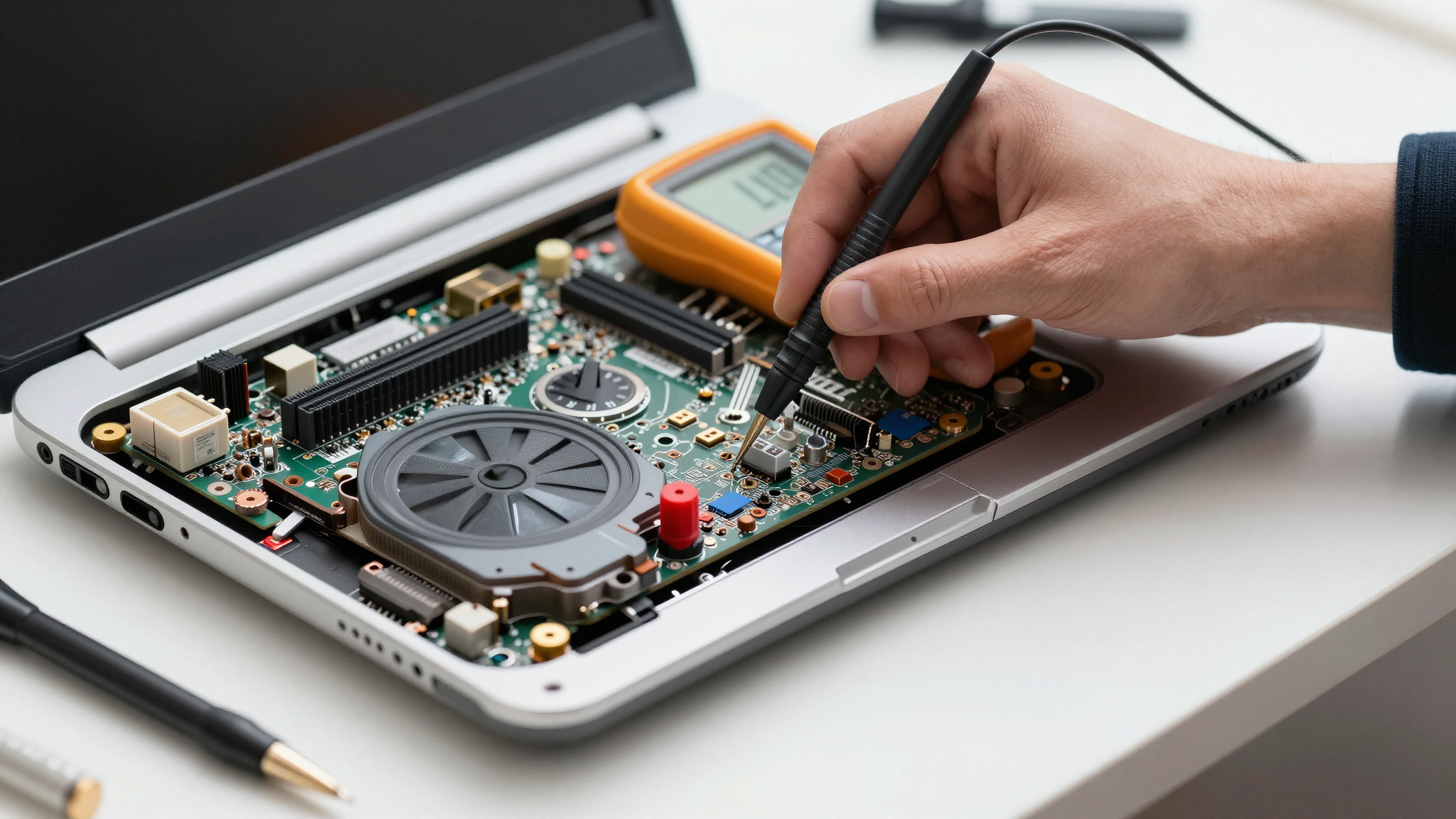
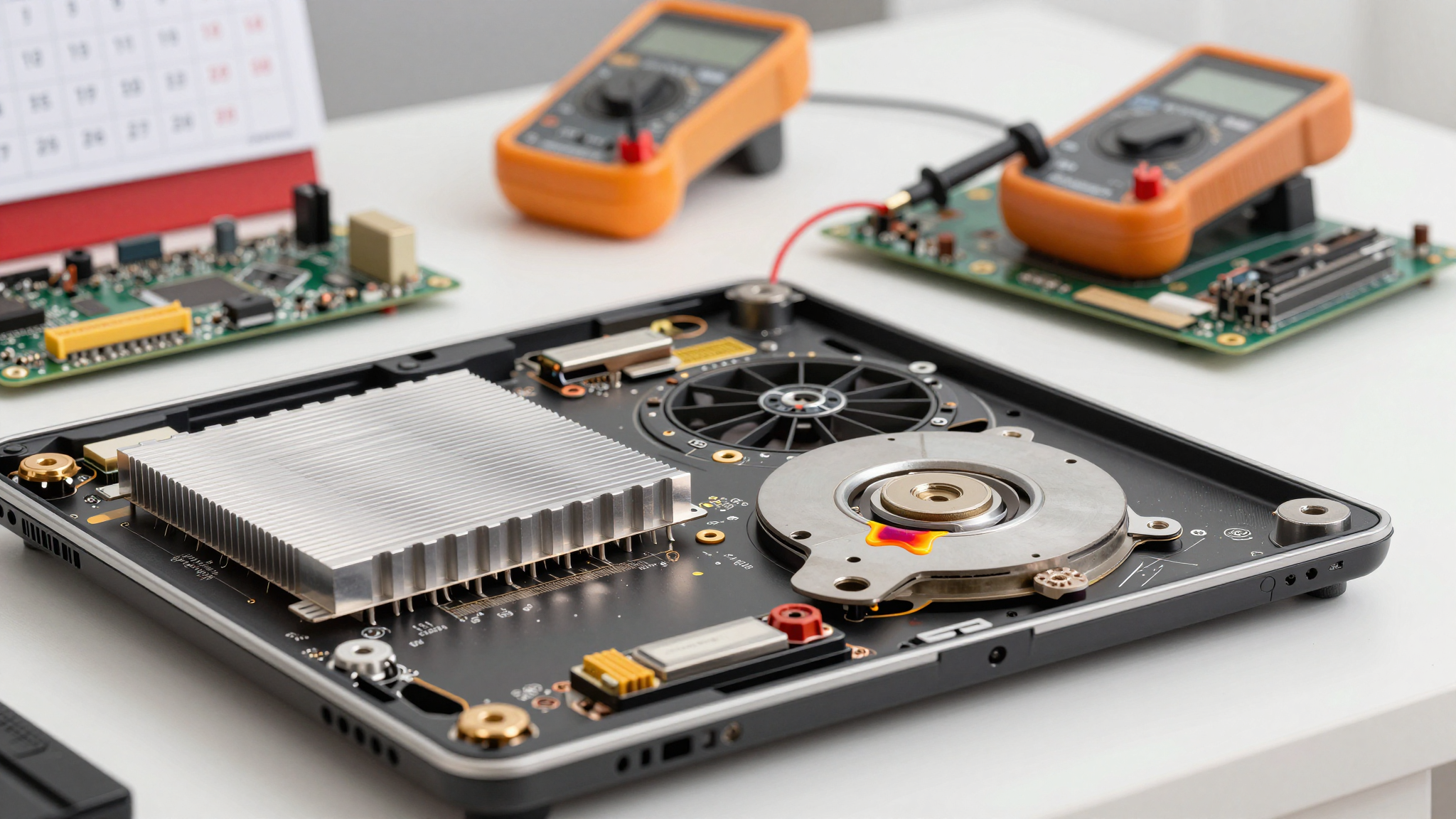
The fan is your Laptop´s best friend. Listen for unusual noises that might indicate it isn´t running correctly.
The Art of PC Maintenance: DIY Cooling Solutions
Preventive measures for your laptop are imperative, such as cleaning the cooling system every 3-6 months or re-applying the thermal paste (more advanced and only every 1 to 2 years). A safe procedure for each are shown below:
| Maintenance Task | Frequency | Tools Required | Difficulty |
|---|---|---|---|
| Dust Removal | Every 3-6 months | Compressed air, soft brush, screwdriver | Easy |
| Thermal Paste Reapplication | Every 1-2 years | Screwdriver, isopropyl alcohol, thermal paste, lint-free cloth | Moderate |
| Fan Cleaning | As needed (if fan noise increases) | Screwdriver, soap, water, soft brush | Easy |
| Vent Cleaning | Every 3-6 months | Compressed air, cotton swabs | Easy |
| Driver Updates | Regularly (check for updates monthly) | Internet access, driver update software | Easy |
Investment Strategies: When to Upgrade or Replace Components
Sometimes, cleaning and maintenance just aren't enough. If your laptop is still overheating despite your best efforts, it might be time to consider upgrades or replacements. One option is to invest in a laptop cooling pad. These pads typically have built-in fans that provide additional airflow to the bottom of the laptop. They can be a relatively inexpensive way to improve cooling performance, especially if you frequently use your laptop on soft surfaces.
Another option is to replace the laptop's fan. Over time, fans can become less efficient or even fail altogether. Replacing the fan can restore proper airflow and reduce overheating. However, this can be a more complex task, as you'll need to find a compatible fan for your specific laptop model and potentially disassemble the laptop further. Also, in the summer of 2025, I tried replacing my laptop fan with an off-brand fan from China, and it was a total waste of money. It was louder and less effective than the original fan, and it died after only a few months. Stick with reputable brands and read reviews before buying a replacement fan.
| Upgrade/Replacement | Cost | Expected Impact | Difficulty |
|---|---|---|---|
| Laptop Cooling Pad | $20-$50 | Moderate improvement in cooling performance. | Easy |
| Fan Replacement | $15-$40 | Significant improvement if the old fan is failing. | Moderate |
| External GPU (eGPU) | $300-$1000+ | Reduces load on the internal GPU, improves gaming performance. | Moderate-Difficult |
| New Laptop | $500+ | Eliminates overheating issues, provides improved performance and features. | N/A |
| Upgraded SSD | $50-$200 | Not directly related to temperature, but improves overall system responsiveness. | Easy-Moderate |
In extreme cases, if your laptop is several years old and consistently overheating despite all your efforts, it might be time to consider buying a new one. Modern laptops often have more efficient cooling systems and more powerful components that can handle demanding tasks without overheating. Plus, you'll get the benefit of newer features and technologies.
🚨 Critical Warning
Be extremely careful when disassembling your laptop. Static electricity can damage sensitive components. Always ground yourself before touching any internal parts. If you're not comfortable with disassembling your laptop, take it to a professional repair shop.
Be extremely careful when disassembling your laptop. Static electricity can damage sensitive components. Always ground yourself before touching any internal parts. If you're not comfortable with disassembling your laptop, take it to a professional repair shop.
Preventative Measures: Keeping Your Laptop Cool Long-Term
The best way to deal with laptop overheating is to prevent it from happening in the first place. Regular maintenance is key. Clean your laptop's vents and fans every few months to prevent dust buildup. Reapply thermal paste every 1-2 years to ensure proper heat transfer. Also, be mindful of your environment. Avoid using your laptop in hot or humid environments, and never leave it in direct sunlight. Dust in the corner of your studio is slowing your fan by 15%, remember that.
Software optimization can also play a role in preventing overheating. Close any unnecessary programs and processes that are running in the background. Use a lightweight web browser and avoid running too many browser tabs simultaneously. Keep your operating system and drivers up to date to ensure optimal performance and stability. Finally, consider using a laptop cooler or stand to improve airflow and keep your laptop cool, especially during demanding tasks.
| Preventative Measure | Description | Frequency | Benefit |
|---|---|---|---|
| Regular Dusting | Clean vents and fans with compressed air. | Every 3-6 months | Prevents dust buildup, improves airflow. |
| Thermal Paste Maintenance | Reapply thermal paste to CPU/GPU. | Every 1-2 years | Ensures proper heat transfer. |
| Optimize Software | Close unnecessary programs and processes. | Regularly | Reduces CPU/GPU load. |
| Update Drivers | Keep operating system and drivers up to date. | Monthly | Improves performance and stability. |
| Environmental Awareness | Avoid hot environments and direct sunlight. | Continuously | Reduces baseline temperature. |
I learned this the hard way. Back in 2023, I was working on a video editing project in my un-airconditioned apartment during a heatwave. My laptop was constantly overheating, and I ended up losing several hours of work due to crashes. Now, I always make sure to work in a cool environment and take frequent breaks to let my laptop cool down.
Frequently Asked Questions (FAQ)
Q1. How do I check my laptop's CPU and GPU temperature?
A1. You can use free software like HWMonitor, Core Temp, or MSI Afterburner to monitor your CPU and GPU temperatures in real-time.
Q2. What is a normal CPU temperature for a laptop?
A2. Idle temperatures should be below 50°C (122°F), and load temperatures should ideally stay below 85°C (185°F).
Q3. How often should I clean my laptop's fans?
A3. You should clean your laptop's fans every 3-6 months, depending on the environment.
Q4. Can I use a vacuum cleaner to clean my laptop's fans?
A4. No, you should not use a vacuum cleaner, as it can generate static electricity that can damage your laptop's internals.
Q5. How do I reapply thermal paste to my laptop's CPU and GPU?
A5. Remove the heatsink, clean off the old thermal paste with isopropyl alcohol, apply a small amount of new thermal paste, and reattach the heatsink.
Q6. What is a laptop cooling pad, and does it work?
A6. A laptop cooling pad is a device with built-in fans that provides additional airflow to the bottom of the laptop. It can improve cooling performance, especially on soft surfaces.
Q7. Can I replace my laptop's fan myself?
A7. Yes, but it can be a complex task. You'll need to find a compatible fan and potentially disassemble the laptop further. Consider professional help if you are not comfortable.
Q8. Is it safe to use my laptop on my bed?
A8. It's not recommended, as soft surfaces can block the vents and trap heat. Use a hard surface or a laptop cooling pad.
Q9. What should I do if my laptop suddenly shuts down due to overheating?
A9. Let the laptop cool down completely before turning it back on. Investigate the cause of the overheating and take preventative measures.
Q10. How can I prevent my laptop from overheating in the summer?
A10. Work in a cool environment, avoid direct sunlight, clean the fans regularly, and use a laptop cooling pad.
Q11. Can undervolting my CPU help with overheating?
A11. Yes, undervolting can reduce the amount of heat your CPU generates by lowering its voltage. Research how to do this safely for your specific CPU model.
Q12. Are there any software settings I can adjust to reduce overheating?
A12. Yes, you can adjust power settings to prioritize battery life over performance, which can reduce CPU usage and heat. Check your operating system's power settings.
Q13. What is an external GPU (eGPU) and how can it help with laptop overheating?
A13. An eGPU is an external graphics card that connects to your laptop, allowing you to offload graphics processing from the internal GPU, thus reducing heat.
Q14. Can running multiple monitors contribute to laptop overheating?
A14. Yes, running multiple monitors can increase the load on your GPU, leading to higher temperatures. Consider using a lower resolution or refresh rate if overheating becomes an issue.
Q15. What type of thermal paste is best for laptops?
A15. High-quality thermal pastes like Arctic MX-4 or Noctua NT-H1 are good choices. Ensure the paste is non-conductive to avoid short circuits.
Q16. Can using an SSD instead of an HDD help with laptop overheating?
A16. SSDs generally produce less heat than HDDs because they have no moving parts, which can indirectly help with overall system temperature.
Q17. Is it safe to disable CPU turbo boost to prevent overheating?
A17. Yes, disabling CPU turbo boost can limit the maximum clock speed of your CPU, reducing heat generation. You can usually find this setting in your BIOS.
Q18. Can viruses or malware cause my laptop to overheat?
A18. Yes, viruses and malware can consume system resources, causing your CPU and GPU to work harder and generate more heat. Run a virus scan regularly.
Q19. Are there any apps that can automatically manage my laptop's fan speed to prevent overheating?
A19. Yes, some laptops have built-in fan control software, and third-party apps like SpeedFan can help you monitor and adjust fan speeds.
Q20. What are the signs that my laptop's thermal paste needs to be replaced?
A20. Signs include consistently high CPU/GPU temperatures, even at idle, and a significant increase in temperatures during light tasks.
Q21. How do I know if my laptop's cooling fan is failing?
A21. Common signs include loud or unusual fan noises, inconsistent fan speed, and rapidly increasing temperatures.
Q22. Can using a USB hub cause my laptop to overheat?
A22. Yes, if the USB hub is drawing too much power from the laptop, it can cause the laptop to overheat. Try using a powered USB hub.
Stay Cool and Game On!
Don't let overheating be the demise of your beloved laptop. With a little care and proactive maintenance, you can keep your system running cool and performing at its best for years to come.
This guide provides general information about diagnosing and fixing laptop overheating issues. The information provided is for informational purposes only and does not constitute professional advice. Attempting to repair or modify your laptop may void your warranty and could potentially damage your device. Always consult with a qualified technician if you are unsure about any procedure. The author and publisher are not responsible for any damages or losses incurred as a result of following the information in this guide.