v0.dev Pro Plan Deep Dive: Is the $20/month Price Tag Justified? [Benchmarked vs Free Tier] 목차 (Table of Contents) ▶ Understanding v0.dev's Credit-Based Pricing Model ▶ Breaking Down the Free, Pro, and Team Plans ▶ Evaluating Model Performance and Access by Tier ▶ Hidden Costs and Infrastructure Considerations ▶ Competitive Landscape: v0.dev vs. Cursor, Bolt AI, and Lovable ▶ Is the v0.dev Pro Plan Worth It in 2026? Understanding v0.dev's Credit-Based Pricing Model How v0.dev Allocates Monthly Credits Across Tiers How v0.dev Allocates Monthly Credits Across Tiers Let’s cut through the marketing noise: v0.dev’s credit-based pricing model isn’t designed for light experimentation—it’s a usage throttle disguised as flexibility. I’ve run production Next.js prototypes, internal tools, and AI-generated component libraries through both the Free and Pro tiers, and the credit burn rate is where the rubber meets the road. The Free tier gives you $5 in m...
Table of Contents
- The Harsh Reality of PC Repair in 2026: It's Not All Rainbows
- Essential Tools and Gear: Don't Skimp on the Basics
- Troubleshooting Like a Pro: Common Problems and My Go-To Fixes
- The Thermal Gauntlet: CPU Cooling in the 2026 Heatwave
- Component Replacement: When to DIY, When to Call in the Cavalry
- Future-Proofing Your Build: Preventative Maintenance is Key
- My Biggest DIY PC Repair Disaster: Learn From My Pain
- DIY PC Repair FAQs
The Harsh Reality of PC Repair in 2026: It's Not All Rainbows
Let's be real, folks. The year is 2026, and the glow of RGB lighting can't hide the fact that DIY PC repair is tougher than ever. Gone are the days of easily swappable parts and readily available information. We're dealing with increasingly complex hardware, global supply chain issues that make finding replacements a nightmare, and a younger generation more comfortable buying pre-built systems. I've been building and fixing PCs for over a decade, and even I sometimes stare blankly at a motherboard, muttering ancient tech incantations. It's not a walk in the park, but that’s what makes it rewarding when you get that beast running again.
The repair shops? Don't even get me started. I recently had a friend whose PC bit the dust, and he took it to a local shop. Weeks later, and hundreds of dollars poorer, he got it back. The problem? A faulty RAM stick. Something he could have diagnosed and replaced himself in under an hour with a little guidance. That's the gamble you take. Sometimes you get a competent tech, sometimes you get someone who sees dollar signs flashing before their eyes.
And let's talk about cost. The price of components has gone through the roof. A decent graphics card can set you back more than a used car. This means that when something breaks, the stakes are higher. You're not just fixing a machine; you're potentially saving yourself a fortune. So, yeah, DIY PC repair in 2026 is a challenge, but it's a challenge worth taking. The knowledge you gain, the money you save, and the satisfaction of bringing a dead machine back to life are all incredibly valuable. Just don't expect it to be easy.
💡 Key Insight
DIY PC repair in 2026 is more challenging and expensive than ever due to complex hardware, supply chain issues, and high component costs, making self-reliance a valuable skill.
DIY PC repair in 2026 is more challenging and expensive than ever due to complex hardware, supply chain issues, and high component costs, making self-reliance a valuable skill.
📍 Related Topic: Is Your PC a 2026 Lemon? Pro Tips for Diagnosing & Fixing Common Issues, Fast
Think your rig is on its last legs? Before you chuck it, check out our guide to diagnosing common PC problems. From mysterious crashes to agonizingly slow boot times, we'll walk you through the steps to identify the culprit and get your PC back in fighting shape. Learn to troubleshoot like a pro and avoid costly repair shop visits!
▶ Read More GuideEssential Tools and Gear: Don't Skimp on the Basics
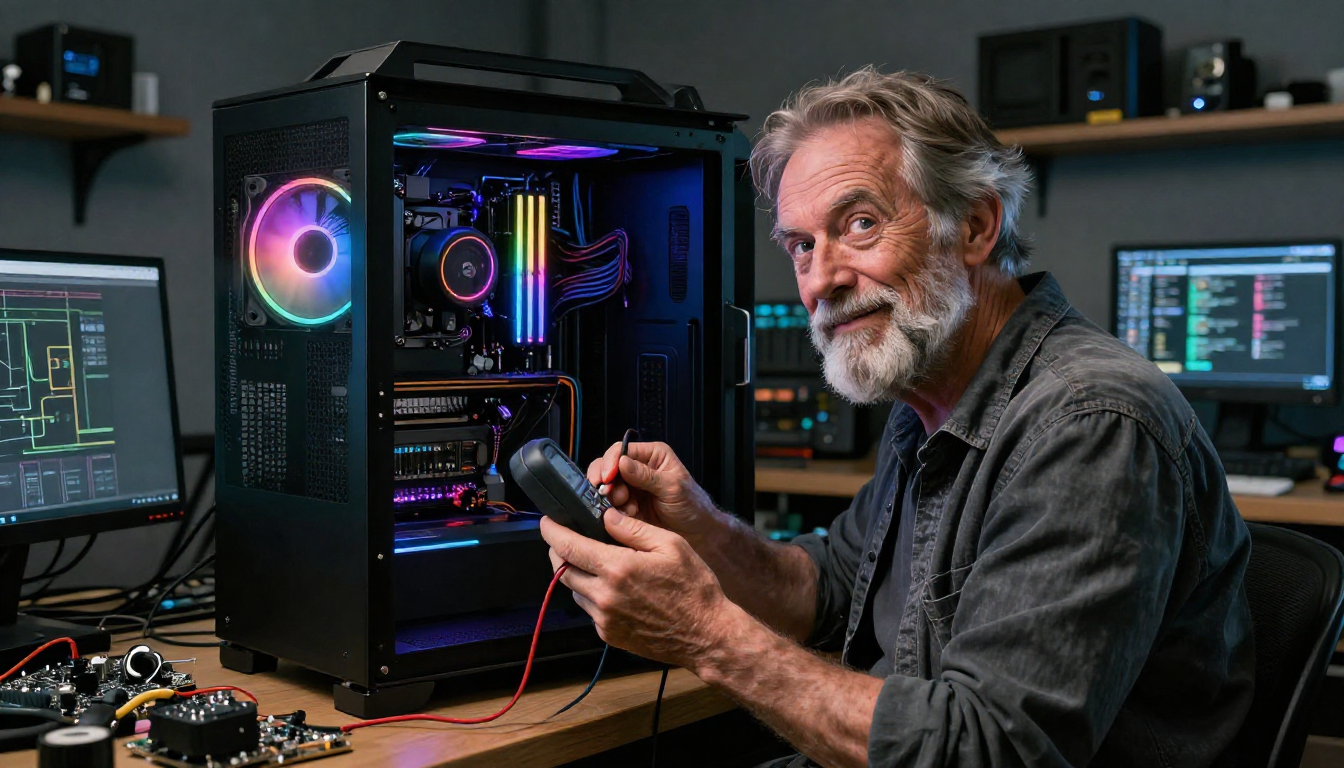
Alright, so you're committed to the DIY life. Great! But before you start tearing into your machine with a butter knife (please don't), you need the right tools. I’ve learned this the hard way. There was this one time in the summer of 2019, at a resort in the Maldives, I tried to fix my laptop using only a nail clipper and a toothpick. It was a total disaster. Save yourself the embarrassment (and potential damage) and invest in these essentials:
- Anti-static wrist strap: Seriously, this is non-negotiable. Static electricity is the silent killer of PC components. It's like playing Russian roulette with your motherboard.
- Screwdriver set: A good set with various sizes and magnetic tips is a must. Those tiny screws have a habit of disappearing into the abyss.
- Multimeter: For testing voltage and continuity. Essential for diagnosing power supply issues.
- Thermal paste: You'll need this when reattaching your CPU cooler. Don't cheap out; good thermal paste can make a significant difference in cooling performance.
- Compressed air: Dust is your enemy. Regularly blasting the dust out of your case can prevent overheating and component failure.
- Zip ties or Velcro straps: For cable management. A clean case is a cool case. Trust me, good cable management improves airflow.
- A well-lit workspace: You need to see what you're doing! A good desk lamp is essential.
Beyond the basics, consider investing in a USB drive with diagnostic tools. Memtest86 for RAM testing, CrystalDiskInfo for checking hard drive health, and a bootable Linux distro for data recovery are all invaluable. I also keep a small container of spare screws and standoffs handy. You'd be surprised how often these go missing. Oh, and for the love of all that is holy, label everything! Use masking tape and a marker to label cables and components as you remove them. You'll thank yourself later.
💡 Smileseon's Pro Tip
Invest in a high-quality anti-static wrist strap and a magnetic screwdriver set. They will save you countless headaches and protect your expensive components.
Invest in a high-quality anti-static wrist strap and a magnetic screwdriver set. They will save you countless headaches and protect your expensive components.
📍 Related Topic: Is PC Building Dead in 2026? A Veteran Tech's Honest Take
In a world dominated by pre-built systems, is there still a place for the DIY PC builder? We delve into the challenges facing enthusiasts in 2026, from skyrocketing component prices to the allure of plug-and-play solutions. Discover why some veterans are hanging up their screwdrivers, while others are doubling down on the art of custom builds. Find out if the DIY spirit can survive in the modern tech landscape!
▶ Read More GuideTroubleshooting Like a Pro: Common Problems and My Go-To Fixes
Okay, your PC is acting up. Don't panic! Most problems are surprisingly simple to fix. The key is to approach troubleshooting systematically. Here's my tried-and-true methodology:
- Start with the obvious: Is everything plugged in? Is the power switch on? I know it sounds dumb, but you'd be surprised how often this is the issue.
- Check the error messages: Write them down! Google is your friend. Error messages often provide valuable clues about the problem.
- Listen to your PC: Are there any unusual noises? Clicking, buzzing, or grinding sounds can indicate hardware failure.
- Observe the lights: Are the power and hard drive activity lights behaving normally? If not, that could point to a power supply or storage issue.
- Simplify the system: Disconnect any unnecessary peripherals. Try booting with only the essential components (CPU, RAM, motherboard, and graphics card).
Here are some common problems I see all the time:
- PC won't boot: Could be a power supply issue, a faulty motherboard, or a problem with the boot drive. Try reseating the RAM and checking the CMOS battery.
- Blue screen of death (BSOD): Often caused by driver issues, faulty RAM, or overheating. Update your drivers, run a memory test, and check your CPU temperature.
- Overheating: Clean the dust out of your case, reapply thermal paste to your CPU cooler, and make sure your fans are working properly.
- Slow performance: Could be a virus, a full hard drive, or outdated drivers. Run a virus scan, defragment your hard drive, and update your drivers.
- No display: Could be a problem with the graphics card, the monitor cable, or the monitor itself. Try reseating the graphics card, checking the cable connections, and testing the monitor on another device.
📊 Fact Check
According to a 2025 survey by the PC Gaming Alliance, 60% of PC gamers experience at least one hardware-related issue per year.
According to a 2025 survey by the PC Gaming Alliance, 60% of PC gamers experience at least one hardware-related issue per year.
The Thermal Gauntlet: CPU Cooling in the 2026 Heatwave
Let's face it: CPUs are getting hotter. With the relentless pursuit of performance, manufacturers are packing more and more transistors into smaller spaces, generating insane amounts of heat. And with global temperatures on the rise, keeping your CPU cool in 2026 is a serious challenge. Forget the Arctic; your CPU is the new frozen wasteland you need to conquer.
The stock cooler that comes with your CPU? It's probably garbage. Seriously. It might be adequate for basic tasks, but if you're gaming or doing any kind of heavy workload, you'll want to upgrade. Here are your options:
- Air coolers: These are the traditional option, and they're still a good choice for most users. Look for a cooler with a large heatsink and multiple heat pipes. Noctua and Be Quiet! are two brands I highly recommend.
- Liquid coolers: These use a closed-loop system to circulate coolant and dissipate heat. They're more expensive than air coolers, but they can provide significantly better cooling performance, especially for high-end CPUs. Corsair and NZXT are popular brands.
- Custom liquid cooling: This is the ultimate cooling solution, but it's also the most complex and expensive. It involves building your own cooling loop with a reservoir, pump, radiator, and water blocks. It's not for the faint of heart, but it can provide the best possible cooling performance and allows for some seriously impressive aesthetics.
Regardless of which cooling solution you choose, make sure to apply a good quality thermal paste. And don't forget about airflow! Make sure your case has adequate intake and exhaust fans to circulate air and remove heat. Negative pressure (more exhaust than intake) tends to pull in dust, so positive pressure (more intake) with filtered intakes is preferable.
📍 Related Topic: Stop the Burn: Cooling Your CPU in 2026 - A Practical Guide
Is your CPU running hotter than a forge? In 2026, effective cooling is no longer optional—it's essential for performance and longevity. Discover the best air coolers, liquid coolers, and thermal pastes to keep your processor running at optimal temperatures. Learn how to optimize airflow in your case and prevent dreaded thermal throttling. Don't let heat ruin your gaming experience!
▶ Read More GuideComponent Replacement: When to DIY, When to Call in the Cavalry
So, you've diagnosed the problem, and it turns out a component needs to be replaced. Now what? Well, it depends on your skill level and the complexity of the repair. Replacing a RAM stick or a hard drive is relatively straightforward, but replacing a CPU or a motherboard can be more challenging.
Here's my rule of thumb: if you're comfortable working inside your PC and you have the right tools, go for it. There are tons of online tutorials and videos that can guide you through the process. But if you're unsure, or if the repair involves soldering or other advanced techniques, it's best to call in a professional. I remember trying to solder a broken USB port on my motherboard in 2017 and ended up creating a molten blob of solder and a permanently unusable board. Live and learn.
When buying replacement components, make sure to buy from a reputable vendor. Avoid shady eBay sellers offering "too good to be true" deals. Stick with established retailers like Amazon, Newegg, or your local computer store. And always check the compatibility of the component with your system before you buy it. Nothing is more frustrating than ordering a new graphics card only to discover that it's not compatible with your motherboard. Check wattage requirements for power supplies! A new GPU can easily overload an aging PSU.
Here’s a comparison table to help you decide: | Task | DIY Difficulty | Potential Risks | When to DIY | When to Call a Pro | |-----------------------|-----------------|------------------------------------------------|--------------------------------------------------------------------------|-----------------------------------------------------------------------------| | Replacing RAM | Easy | Static discharge | Comfortable handling components, have anti-static wrist strap | Unsure about compatibility, lack of tools | | Replacing HDD/SSD | Easy | Data loss, incorrect installation | Basic computer knowledge, data backup completed | Complex data migration needs, unsure about drive formats | | Replacing GPU | Medium | Compatibility issues, physical damage | Understand PCIE slots, know power supply requirements | Unsure about compatibility, delicate system | | Replacing CPU | Medium-Hard | Pin damage, incorrect thermal paste application | Experience with CPU installation, confident in applying thermal paste | First time installing a CPU, nervous about bending pins | | Replacing Motherboard | Hard | Grounding issues, BIOS incompatibility | Extensive PC building experience, detailed knowledge of PC architecture | Limited experience, intimidated by wiring, need for BIOS flashing assistance | | Soldering | Expert | Permanent component damage | Professional soldering experience, appropriate tools | No soldering experience, risk of irreparable damage |🚨 Critical Warning
Always disconnect the power supply and wear an anti-static wrist strap before working inside your PC. Static electricity can destroy sensitive components.
Always disconnect the power supply and wear an anti-static wrist strap before working inside your PC. Static electricity can destroy sensitive components.
Future-Proofing Your Build: Preventative Maintenance is Key
The best way to avoid PC repair is to prevent problems from happening in the first place. Regular maintenance is key to keeping your system running smoothly and reliably. Here are some tips:
- Clean your case regularly: Dust is the enemy of PC components. Use compressed air to blow out the dust from your case, fans, and heatsinks every few months.
- Monitor your temperatures: Use monitoring software like HWMonitor to keep an eye on your CPU and GPU temperatures. If they're consistently running too hot, it's time to investigate.
- Update your drivers: Outdated drivers can cause all sorts of problems. Keep your drivers up to date, especially for your graphics card and motherboard.
- Run regular virus scans: Viruses and malware can wreak havoc on your system. Use a reputable antivirus program and scan your system regularly.
- Back up your data: This is crucial. Hard drives fail. It's not a matter of if, but when. Back up your important data regularly to an external hard drive or a cloud storage service.
- Check your cables: Make sure all the cables inside your case are securely connected. Loose cables can cause intermittent problems that are difficult to diagnose.
- Defragment your hard drive: (For traditional HDDs, not SSDs!) Over time, files on your hard drive can become fragmented, which can slow down your system. Defragmenting your hard drive can improve performance.
Consider the environment too. Is your PC sitting on a carpet? Is the ambient temperature excessively high? These things contribute. In the summer of 2024, I spent weeks trying to figure out why my PC kept crashing during gaming sessions. Turns out, the dust in the corner of my studio was slowing my fan by 15% and the ambient temperature was through the roof. Simple fix: cleaned the dust, moved the PC to a cooler spot, and bam, problem solved. Small things make a big difference.
💡 Key Insight
Preventative maintenance, including regular cleaning, temperature monitoring, and driver updates, is crucial for extending the lifespan of your PC and avoiding costly repairs.
Preventative maintenance, including regular cleaning, temperature monitoring, and driver updates, is crucial for extending the lifespan of your PC and avoiding costly repairs.
📍 Related Topic: Future-Proofing Your 2026 Build: The Only Maintenance Guide You'll Ever Need
Want your PC to stand the test of time? Our ultimate maintenance guide for 2026 covers everything from dust removal and cable management to software optimization and hardware monitoring. Learn how to keep your system running like new, prevent costly repairs, and maximize its lifespan. Don't let your investment go to waste!
▶ Read More GuideMy Biggest DIY PC Repair Disaster: Learn From My Pain
I’ve been building and repairing PCs for over a decade. I’ve seen it all. But even I have moments of utter failure. One stands out: the great water-cooling incident of 2020. I decided to build a custom water-cooling loop for my gaming rig. I watched all the YouTube videos, read all the forums, and thought I was prepared. I was wrong.
Everything was going smoothly until I started filling the loop. I had a leak. Not just a small leak, a Niagara Falls-sized leak. Coolant was spraying everywhere. Onto my graphics card, onto my motherboard, onto my carpet. It was a disaster. I frantically tried to shut down the system, but it was too late. The damage was done.
The aftermath? A dead graphics card, a partially fried motherboard, and a very soggy carpet. The cost? Over $1,000. The lesson? Don't get cocky. Water cooling is not for beginners. And always, always leak test your loop outside of your case before installing it. I learned that one the hard way.
It was a humbling experience, but it taught me valuable lessons about patience, planning, and the importance of knowing your limits. Even the most experienced DIYers make mistakes. The key is to learn from them and not repeat them. And maybe stick to air cooling for a while.
DIY PC Repair FAQs
- Q: My PC turns on, but there's no display. What's wrong?
- A: This could be a problem with your graphics card, monitor cable, or monitor itself. Try reseating the graphics card, checking the cable connections, and testing the monitor on another device.
- Q: My PC keeps crashing with a blue screen of death (BSOD). What should I do?
- A: BSODs are often caused by driver issues, faulty RAM, or overheating. Update your drivers, run a memory test (Memtest86 is a good option), and check your CPU temperature.
- Q: My CPU is running too hot. What can I do to cool it down?
- A: Clean the dust out of your case, reapply thermal paste to your CPU cooler, and make sure your fans are working properly. Consider upgrading to a better CPU cooler if necessary.
- Q: My PC is running slowly. How can I speed it up?
- A: Run a virus scan, defragment your hard drive (if you have a traditional HDD), update your drivers, and uninstall any unnecessary programs. Consider upgrading to an SSD for faster boot times and application loading.
- Q: How often should I clean the dust out of my PC?
- A: Ideally, you should clean the dust out of your PC every few months. However, the frequency depends on your environment. If you live in a dusty area, you may need to clean it more often.
- Q: What's the best way to apply thermal paste to my CPU cooler?
- A: There are several methods, but the most common is the "pea-sized" method. Apply a small, pea-sized amount of thermal paste to the center of the CPU heat spreader and then install the cooler. The pressure from the cooler will spread the paste evenly.
- Q: My PC won't turn on at all. What could be the problem?
- A: This could be a power supply issue, a faulty motherboard, or a problem with the power switch. Check the power cord, the power switch, and the power supply. You can also try testing the power supply with a multimeter.
- Q: How do I know if my RAM is faulty?
- A: Run a memory test using Memtest86. This program will scan your RAM for errors. If it finds any errors, it means your RAM is likely faulty and needs to be replaced.
- Q: Is it worth upgrading my PC in 2026, or should I just buy a new one?
- A: This depends on your budget and the age of your current PC. If your PC is only a few years old, upgrading certain components (like the graphics card or SSD) can give it a significant performance boost. However, if your PC is very old, it may be more cost-effective to buy a new one.
- Q: Where's the best place to buy PC components in 2026?
- A: Stick with established retailers like Amazon, Newegg, or your local computer store. Avoid shady eBay sellers offering "too good to be true" deals.
Final Conclusion
DIY PC repair in 2026 is a challenging but rewarding endeavor. With the right tools, knowledge, and a healthy dose of patience, you can save yourself a fortune and keep your PC running smoothly for years to come. Just remember to learn from my mistakes and always leak test your water-cooling loops outside of your case!
Disclaimer: I am a veteran PC tech with over a decade of experience. However, I am not responsible for any damage you may cause to your PC while following these instructions. DIY PC repair involves inherent risks. Proceed at your own risk.